A Guide to Effective Resource Capacity Planning in Jira

This article covers how to be more effective at individual and team planning, and how to streamline your project workflows across departments. We’ll discover two approaches to resource capacity planning, and outline the strategies, benefits, and best practices for each. Everything discussed here can be scaled, helping your enterprise function at premiere performance. See how applying effective resource capacity planning can ensure seven instantaneous benefits your business can utilize to function at peak performance.

Table of contents

The Challenge of Effective Resource Capacity Planning

Identify what you really need to know

On a basic level, capacity planning is an obvious need. You don’t want employees tasked with so much work that some of it goes unfinished, and you don’t want employees with too much idle time โ€“ especially if others are overworked. How do you find a balance? Companies are looking for solutions to help streamline this flux of workflow. Resolving capacity problems and implementing effective solutions will help your business deliver projects on time and continue to conduct business without workflow interruptions.

Because your organization is unique, you need to be clear on what level of resource capacity planning you’re already doing, and what you aren’t. Let’s look at the following scenarios to help clarify this a bit further.

  • Maybe team managers have been handling individual resource capacity, but now your organization is growing and you need a larger view across projects.
  • Are you more concerned about allocating skills, or work roles/positions?
  • Is there a particular problem or set of problems you want to solve?
  • Or are you trying to get out ahead of potential problems?

Even in the latter case, you still need to identify which problems you’re most concerned about. Consider whether it would be more useful to group your employees by team, department, role, key skillset, etc. That grouping will affect a lot of the reporting options we’ll be looking at. If you skip this step, it’ll be hard to choose the right tools or know-how to make effective use of the data they give you.

Determine which tool(s) to use

There are, obviously, plenty of tools that either include resource capacity planning as a feature or focus on it exclusively.
Two key aspects to consider when selecting a tool are:

  • Whether the data it gathers will help you with the problems you want to solve
  • How flexible the tool can display that data in different ways. It may be that the tool’s built-in reporting will meet your needs, or you may need an additional tool to give you more options. We’ll discuss some particular tools later on.

Capture the right data

There are several capacity-related elements you may want to report on, such as the team an individual belongs to, and what projects they’re working on. You don’t want to choose a tool that ignores teams if you want to see a capacity for your team. 

Present the data so it tells you what you need to know

Capacity planning is about data โ€“ the number of hours employees are allocated to various projects and the hours they worked on those projects. That data can, with the right tools, be displayed in a wide variety of ways. Each of those displays tells a different story, and you want to make sure you hear the stories you need to hear.


Two Approaches to Resource Capacity Planning

The two fundamental approaches to capacity planning are team-based and individual-based. Most organizations will need a combination of the two, but it’s important to understand them separately. We’ll run through how each works using Jira and our favorite tools.

Individual-based Planning and Capacity

This approach probably doesn’t need much explanation, since even a small organization will find it useful to plan each employee’s workload. In order to support individual-based capacity planning with Jira, you’ll need some Atlassian Marketplace addons. Here we’ll cover using Tempo (with Tempo Planner and Tempo Timesheets) plus EazyBI to display the data as we need it.

What You Get with Tempo

Planning

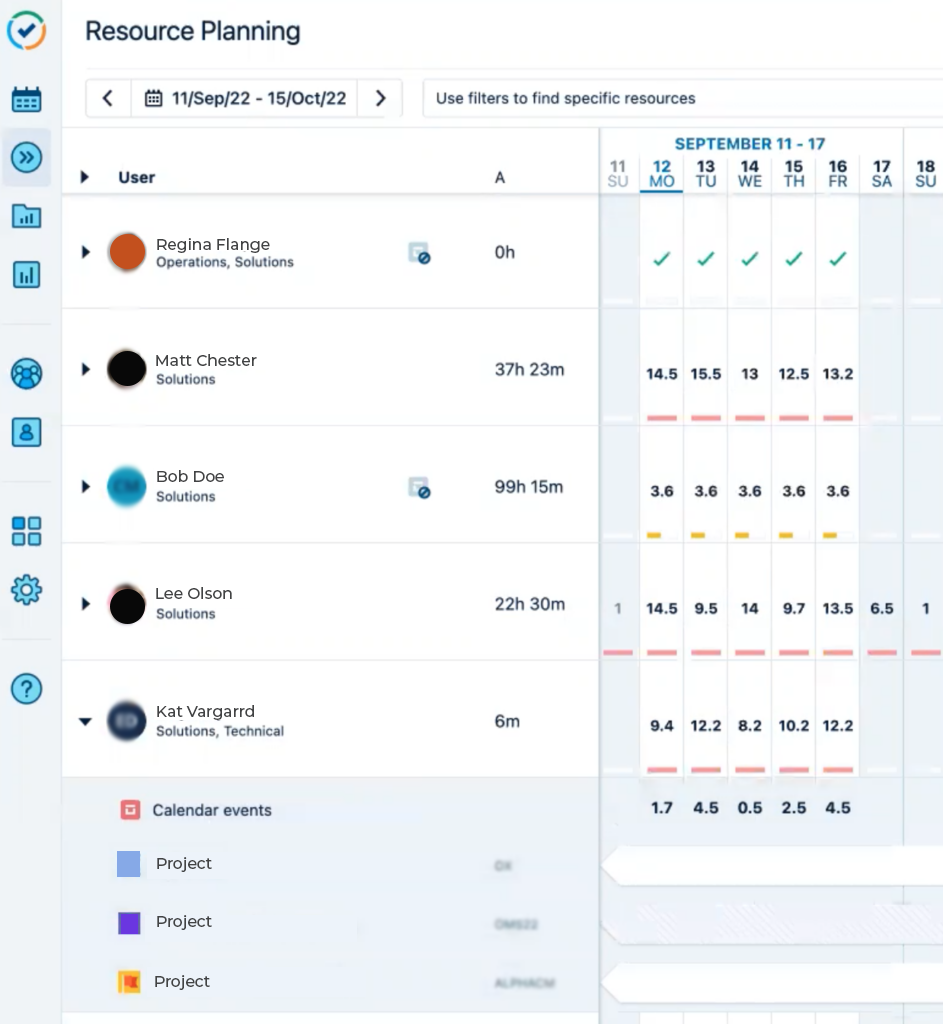
Tempo Planner gives you a number of options for viewing planning data.
Tempo The planned hours view in Tempo planner
The planned hours view in Tempo Planner

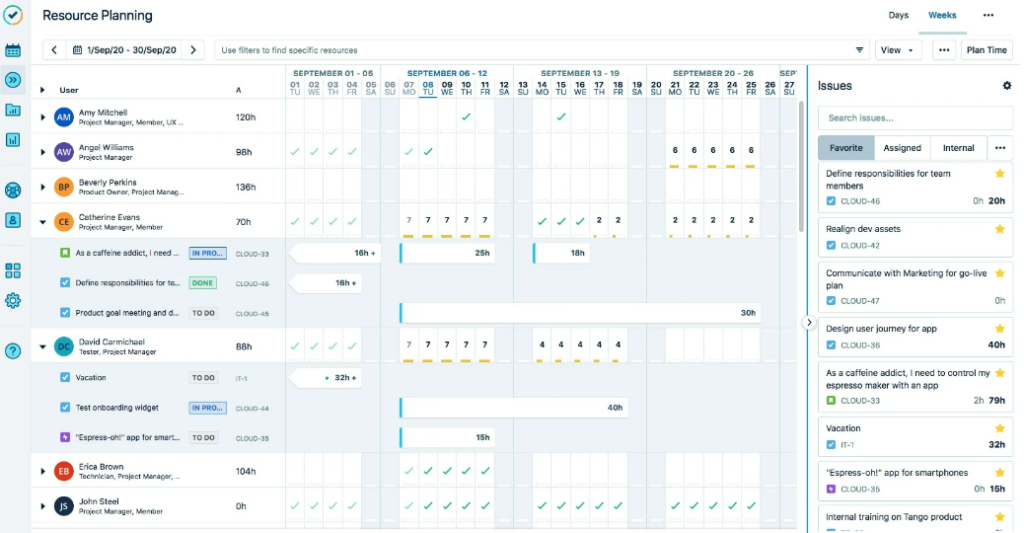
Here we see the Resource Planning view.

Each row is a resource, labeled with the Tempo team(s) they belong to, and a column for each day. A red bar in a table cell indicates that the resource has more hours planned for that day than they have capacity, while yellow means they have spare capacity. By default, the allocated hours for each resource are summed across all projects, but you can expand a resource to see their allocation by project. And this is more than a report โ€“ you can add planned hours right in the screen.

It’s easy to change the displayed time period, and you can use filters to show only certain resources.

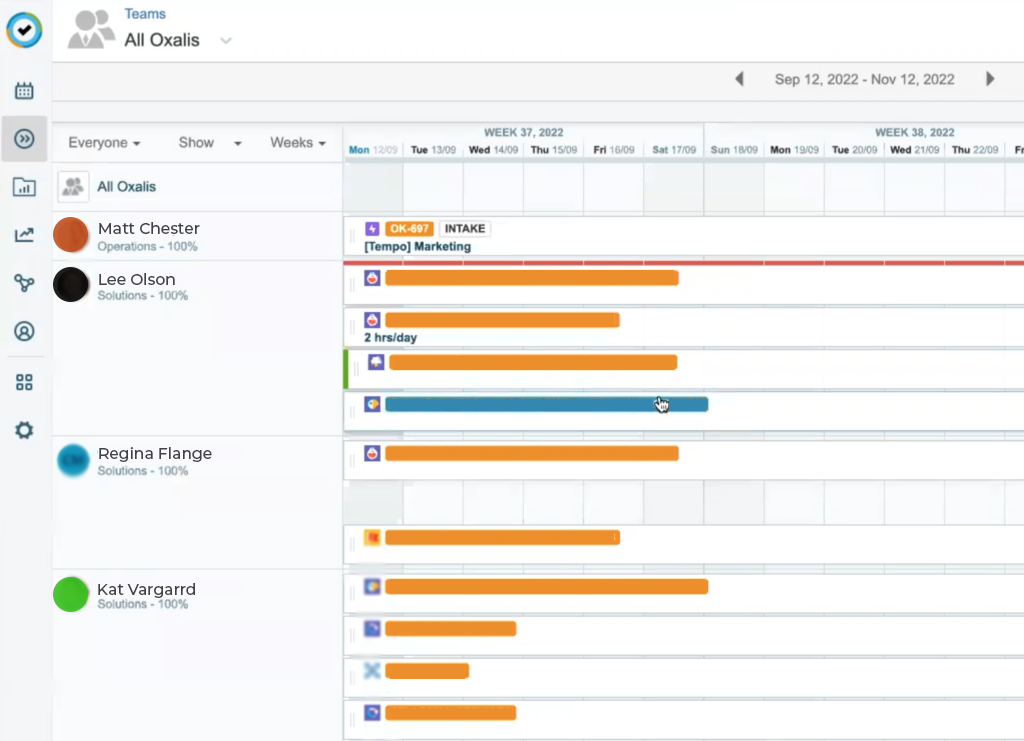
Then there’s the Timeline view, which displays the project each resource has hours planned for, across the chosen time period.
Tempo Resource planning in tempo by project
Resource planning in Tempo by project
Planned vs. Actual

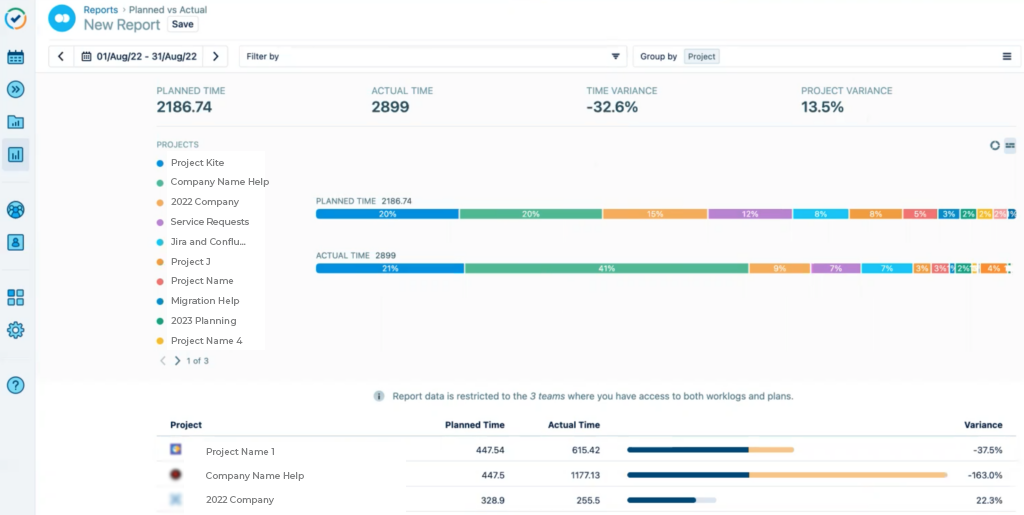
Now what happens? People will work, and they’ll log their hours to these specific projects, and the actual data will diverge from the plan. Tempo’s Planned vs Actual report will give you a sense for how closely teams and projects are working to their planned hours.
Tempo The default overview in Tempo's Planned vs Actual report
The default overview in Tempo’s Planned vs Actual report

We have three sections (above):

  • at the top, total hours across all resources and projects
  • in the middle, a visual breakdown of planned and actual time by project
  • and at the bottom, a list by project.

You can filter and group to get more specific. This sort of pipeline overview has value, and is easy to get since it’s built into Tempo Planner. But it’s generic, and may or may not help you identify and track the specific issues you need to. And there are better ways to look at this data.

What EazyBI Adds

When you import the source data from Jira and Tempo into EazyBI, you open up a range of options for visually displaying the state of your capacity plans. Let’s look at some examples of what EazyBI can do for you; note that all these reports require custom setup, so you’ll need to allow sufficient time for that.

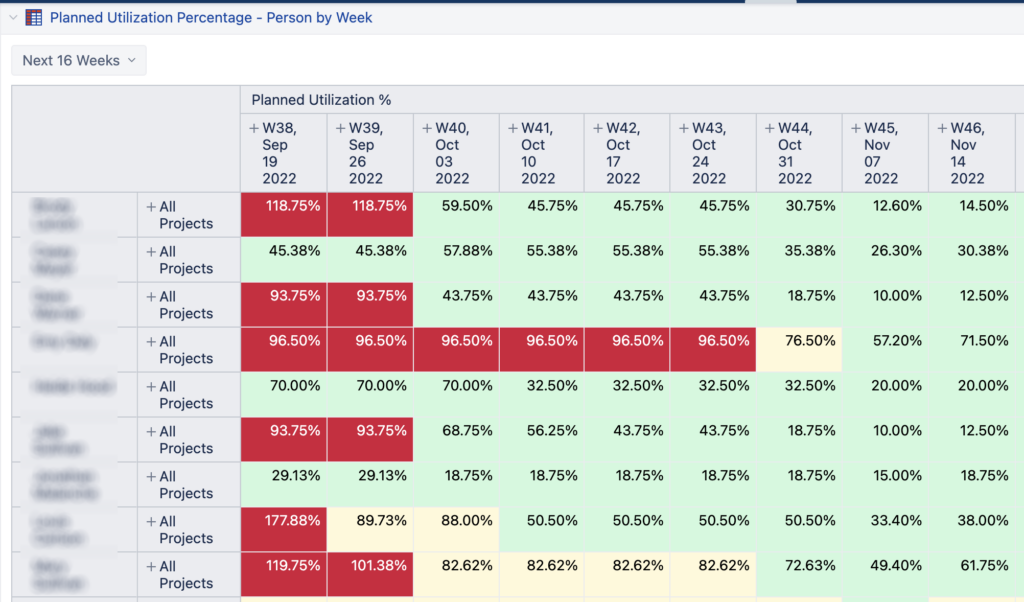
Here we see a Planned Utilization view that displays each resource’s planned hours compared to their capacity, to show who has more work planned than they can probably do in that time period, and who has time available to be planned.
Sample EazyBI report: Planned Utilization Percentage tempo
Sample EazyBI report: Planned Utilization Percentage

Green cells indicate plenty of available capacity, while yellow warns that the resource is close to capacity, and of course red means they’re over-allocated. This makes it easier to move work around and keep everyone allocated properly.

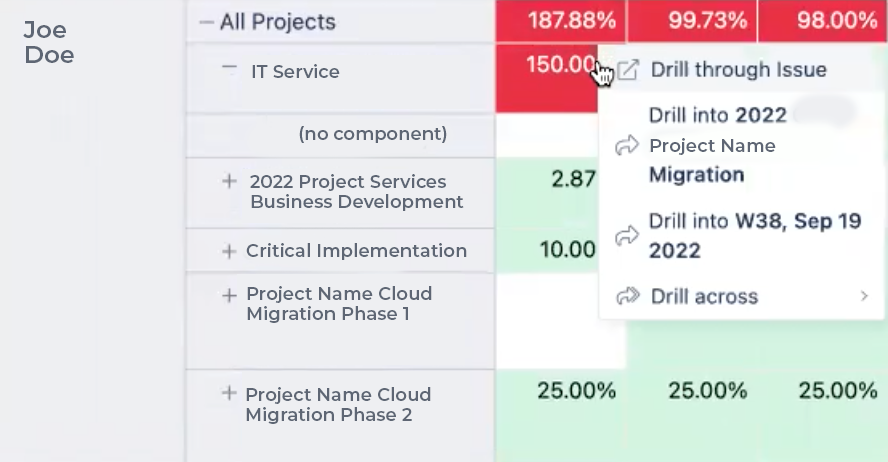
You can expand All Projects to see how the allocation breaks down by project and identify the source(s) of that over-allocation. Take that top left 118.75%, for example.
The Planned Utilization Percentage report with per-project breakdown tempo
The Planned Utilization Percentage report with per-project breakdown

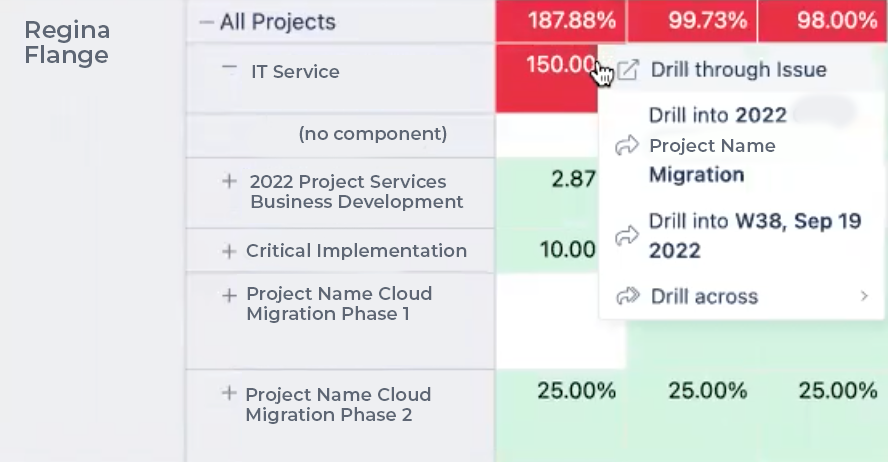
Now we see where that over-allocation comes from โ€“ the resource isn’t over-allocated for any one project, but just has too much time planned for too many projects. If the work is planned by component, you can expand a project and see that allocation as well. And right-clicking on a cell gives you several options for drilling further into those planned hours.
More right-click options for EazyBI reports tempo
More right-click options for EazyBI reports

Using the timeline dropdown, you can change the period you’re reviewing, by week, by quarter, by year, and so on.

Tempo timeline dropdown tempo

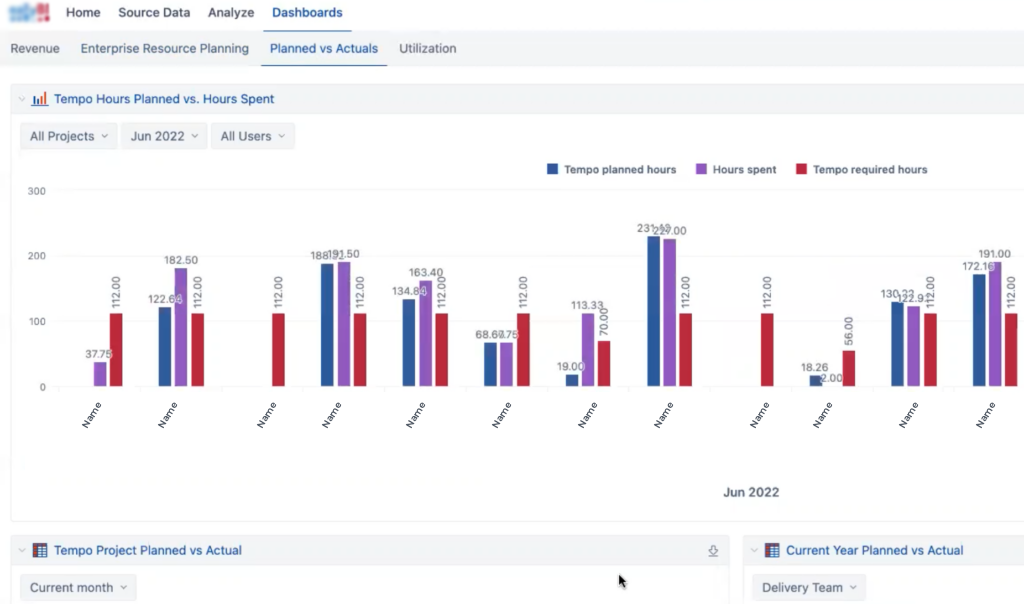
Now let’s look at what we can do for planned time versus actual time (PvA). Here is a dashboard that provides several options for getting an overview.
Tempo Sample EazyBI dashboard - Planned vs Actuals
Sample EazyBI dashboard – Planned vs Actuals

At the top is this resource graph showing each resource’s planned hours for the time period, actual hours spent, and hours required (e.g. 5×8 hours per week, or 3×10, or whatever you configure in Tempo). This makes the variance between planned, actual, and required easy to see.

Below are two reports, one showing PvA per project, and one showing PvA per month with % Utilization.
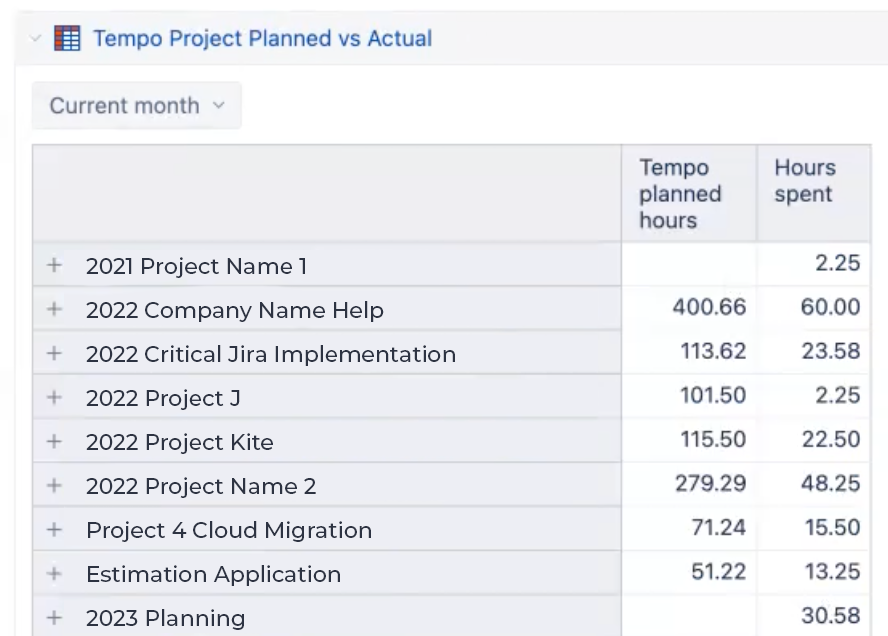
Tempo Sample report in dashboard - Planned vs Actuals by project
Sample report in dashboard – Planned vs Actuals by project

Each report lets you change a parameter, either the time period or the team. These numbers assume they’re required to work 40 hour weeks.
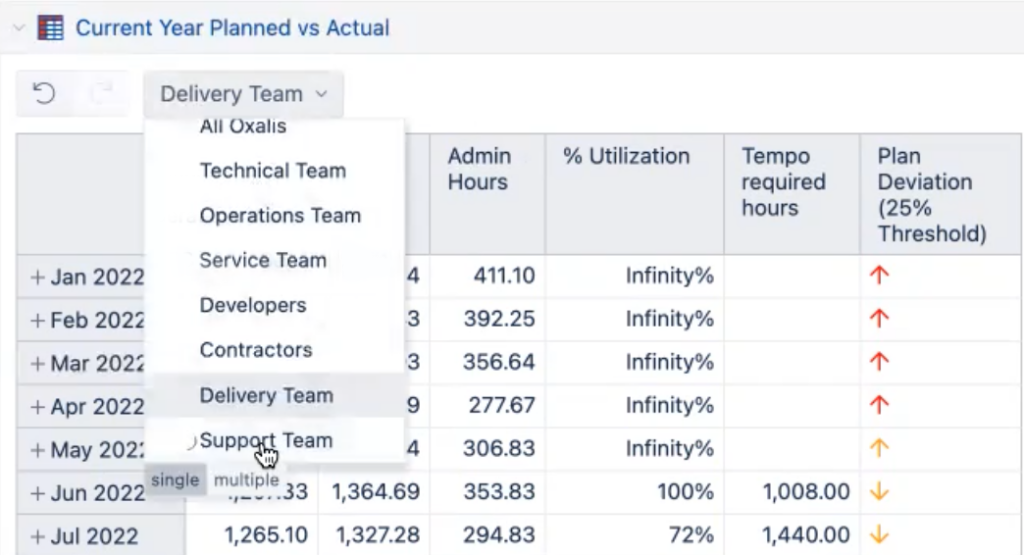
Sample report in dashboard - Planned vs Actuals by team
Sample report in dashboard – Planned vs Actuals by team

A closer look at the key idea behind % Utilization

All hours worked are not equal, and whenever you’re looking at all of a resource’s time (rather than by project), you might well be including admin or non-billable time. And that will throw off your numbers. So if your workers are logging their admin time, then you want to make sure you’re comparing planned hours to time actually spent on projects. Therefore, this % Utilization is Hours Spent minus Admin Hours divided by the Tempo planned hours.

At this macro level, PvA reports like this show you how efficiently teams, departments, or other resource pools are operating.

But EazyBI will also give us better insight into the resource level.
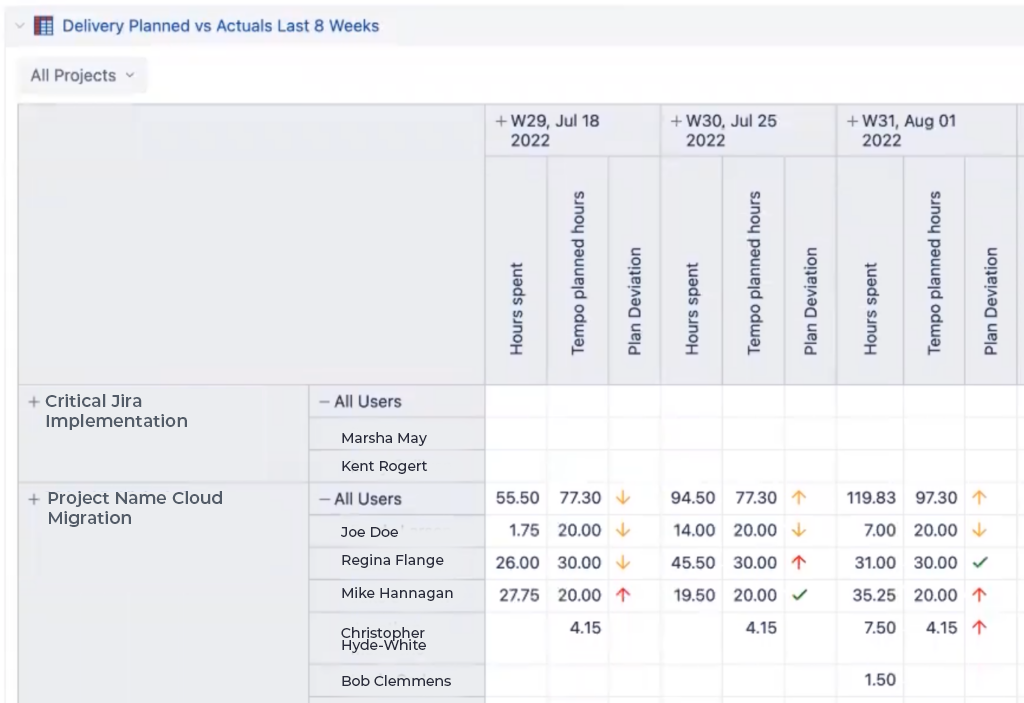
Tempo Sample report in dashboard - Planned vs Actuals by project and resource
Sample report in dashboard – Planned vs Actuals by project and resource

Here we can see, for each project, the weekly planned and actual hours for each assigned resource โ€“ along with a visual indicator of how well PvA is adhering to the plan. Or you can collapse the Users and see the totals by project. And the timeline can be per day instead, or by month, quarter, etc., while the Project dropdown lets you narrow the report.

These sorts of advanced capacity and utilization metrics โ€“ and more โ€“ are possible once you’re capturing the right data and displaying it the way you need.

You can:

  • Identify departmental bottlenecks and other challenges.
  • Ensure that all resources are properly utilized.
  • Keep projects on schedule AND quickly slot new projects into timelines based on when the resources are available.
  • Improve hiring cadence by planning intake so new hires are in place and ready by the time they’re actually needed.
  • Schedule project milestones, code releases, and other delivery events efficiently because you see the impact on the teams involved.
  • And so on.

Setting it up

All this operational goodness is only possible if you’ve set yourself up for success. The following processes are prerequisites.

Reviewing your plan: The value in PvA reporting starts with planning. You need to make sure that all relevant personnel are time planning sufficiently in advance to be useful, and adjust the plans as the situation on the ground changes.

Entering time worked: If work time isn’t logged accurately and on time, then you’re wasting your planning. And accuracy is tied to timeliness since most people’s recollection of what exactly they did a week ago won’t be so good. Ideally, you can cultivate a culture of daily time logging, whether it’s logging time in individual tasks, entering it in a central timesheet, or whatever your timekeeping process is. The good news is that the reporting applications we’ve discussed can also show you when people aren’t logging time, which gives you a way to reinforce the practice.

Being realistic about admin time: Any number of different things can take up an employee’s time, from meetings to emails to chats to phone calls to smoke breaks to bathroom breaks to clean the break room, and on and on. You can’t accurately assess an individual’s capacity unless you know how much time they actually have to work on the projects you’re planning. And this will vary by person! It’s worth putting in the effort to figure this out upfront, whether you use Atlassian’s Capacity Planning exercise or another approach. Without this key piece, you can do everything else here exactly right and still end up with PvA numbers that are frequently off.

Holding regular capacity planning meetings: Capacity planning can be done monthly, quarterly, weekly, or bimonthly โ€“ whatever works for you. No matter the cadence you choose, stick to it. Plan around those meetings. The more regularly you do it, the more you’ll get a feel for the process, for what it’s like to plan for that period. Shuffle resources around, address delivery scheduling risks, make performance staff decisions… and do it all with confidence because the data is now there to justify the decisions.

Team-based Resource Planning and Capacity

This approach is suitable for an organization that has reached a certain size. For instance, if you are trying to manage your capacity by only looking at individual resources, you’ll soon find that tactic becomes increasingly ineffective. You’ll have larger projects, larger teams, more levels, and types of teams. So how do you manage this efficiently?

Team-based capacity planning across multiple projects is supported in Jira Cloud Premium out-of-the-box version and up via Advanced Roadmaps (AR). Resource and capacity planning needs arise in earnest when you’re managing capacity across multiple projects, so you’ll want the Premium version. We have a full guide on how AR is set up to be operational. You can define teams that are dedicated to a plan โ€“ or the teams can be shared across multiple plans so that their capacity can be allocated in different parts of your portfolio according to your particular needs.

What AR offers for team-based capacity planning

This overview assumes familiarity with Advanced Roadmaps; to learn more about AR take a look at Advanced Roadmaps for Jira: Overview & Comparison or our ON-DEMAND webinar.  Be sure to keep in mind that using the word “team” from this point on will mean a team as defined in AR terms, which may or may not match your organizational structure. More on that later.

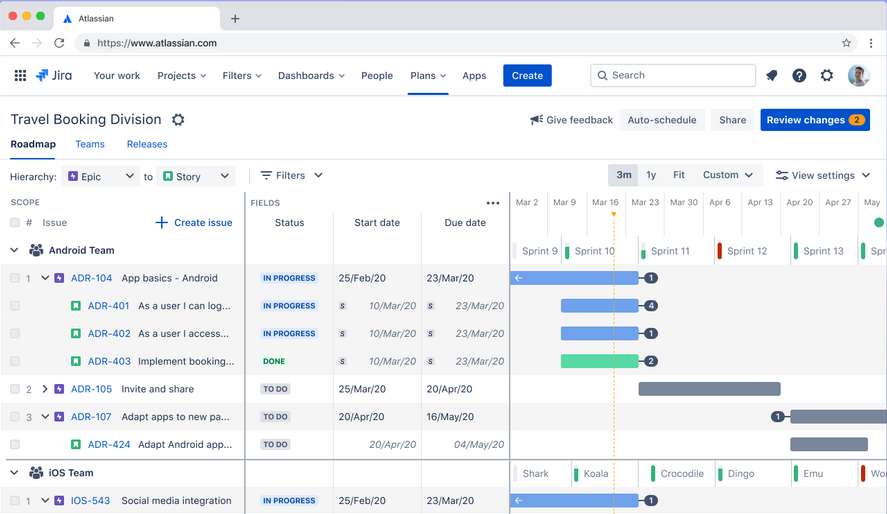
Team-based planning is easy to access in an AR plan โ€“ just choose Team in the ‘Group by’ setting and turn on ‘Show capacity on timeline’. Using AR for planning is an entire topic of its own, so we’ll assume here that you know how and have both created some plans and defined some teams.
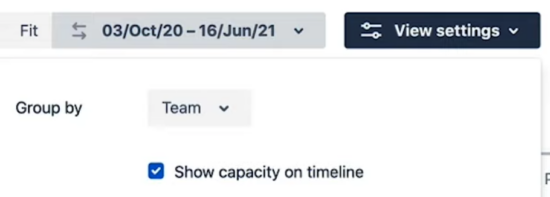
Team-based planning is easy to access in an advanced roadmaps plan

This will add a capacity indicator row for each team, using the planned dates from your sprints and the total story points for each sprint. This capacity indicator works no matter what level(s) of issue you’re viewing, from Epic to Sub-task.
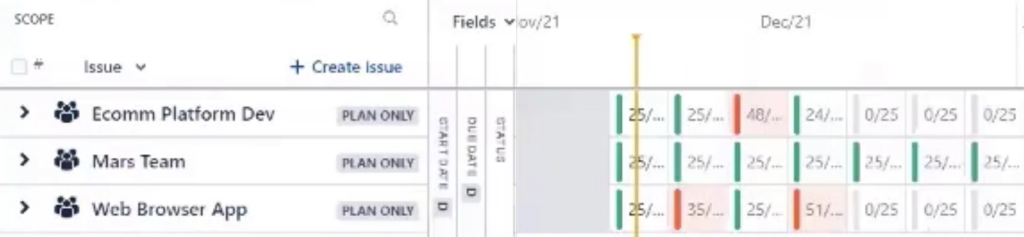
Epic to Sub-task chart

The green lines in each cell indicate that the time period is at or under capacity โ€“ in fact, the height of the green line shows you how close to capacity that period is. And of course, red lines indicate that the work included in that time period exceeds the team’s capacity. You may need to reduce the timeline displayed in order to see more detail; this can be done in the lower right.
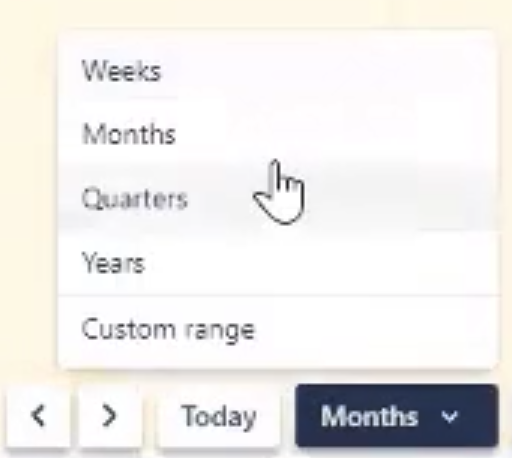
time period: Jira Advanced Roadmaps

But what exactly does capacity mean here?

Capacity Overview

Generally speaking, the number of story points or hours your team can complete in one iteration is referred to as its capacity. But capacity works differently for Scrum vs. Kanban teams. Let’s define these two types of teams further.

Capacity for Scrum teams

When scheduling work for Scrum teams, capacity is calculated differently for time-based estimates and story points:

If youโ€™re using time-based estimates, the sprint capacity is determined by taking the weekly capacity and multiplying by the number of weeks per iteration. For example, if your teamโ€™s capacity is 40 hours and your iterations last two weeks, your teamโ€™s sprint capacity will be 80 hours.

If you estimate in story points, no conversion is necessary since story points are defined per iteration. The capacity applies to the whole sprint. By default, this is set to 30 story points, though you can adjust this to meet your teamโ€™s needs.

Capacity for Kanban teams

Kanban teams can only use time-based estimates, so be sure to populate the Original Estimate and Remaining Work fields.

For Kanban teams, work is broken down into iterations which each last one week (this cannot be altered). You can set the weekly capacity of a Kanban team in either days or hours, but the length of the iteration cannot be changed. If you set the weekly capacity in hours, here’s an example of how AR converts that into days: a weekly team capacity of 30 hours is 3/4 of the full 40 hour work week, and 3/4 of a 5-day work week is 3.75 days, and if the team has 6 team members, the weekly capacity in days is 3.75 X 6 = 22.5.

Assessing Your Capacity

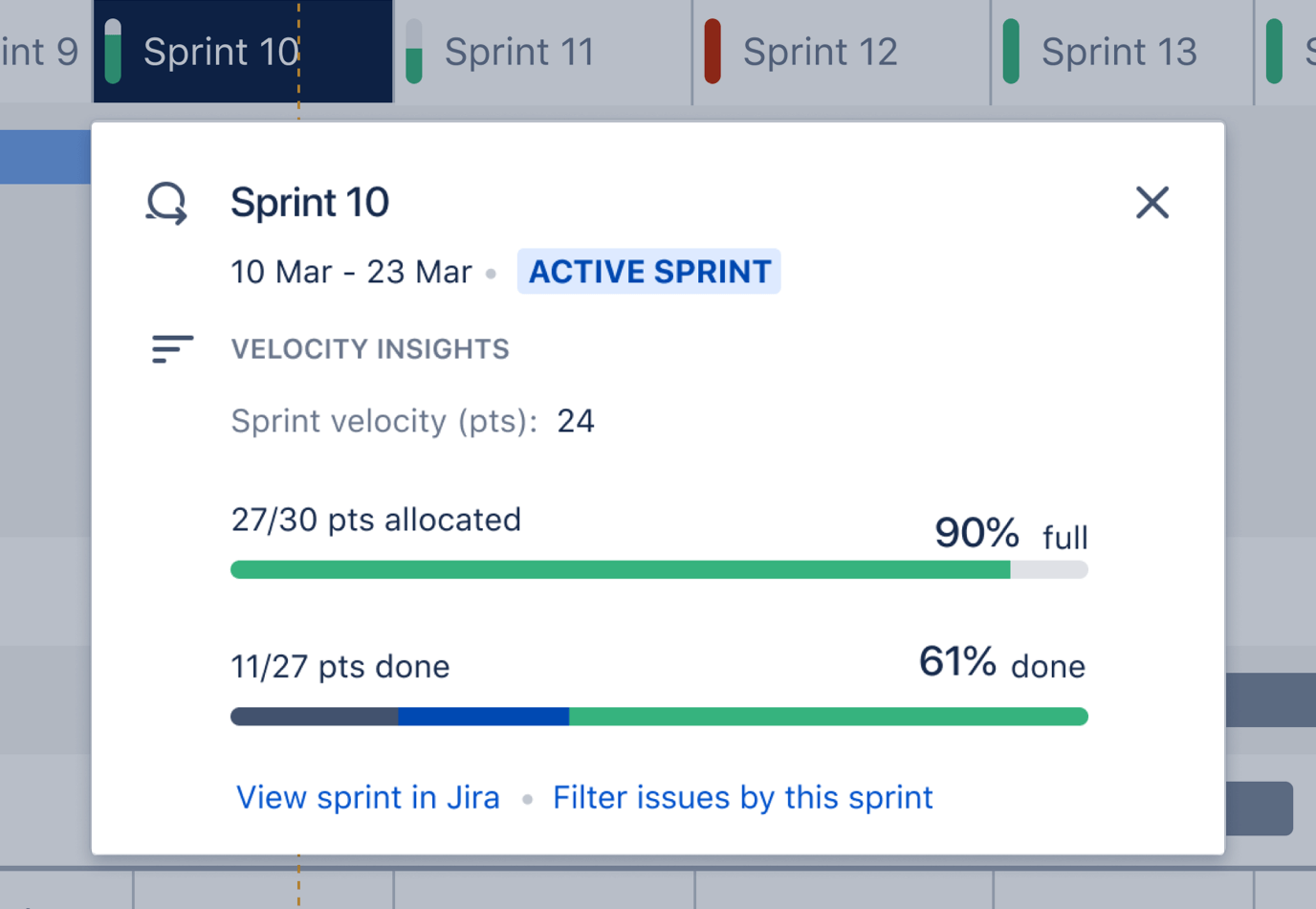
You can view a popup summary of each period (sprint or iteration) in the chart by clicking on it. Here’s what that might look like for Kanban โ€“ note that you can change the capacity of that period by clicking on the capacity number, e.g, the 25 in both these examples
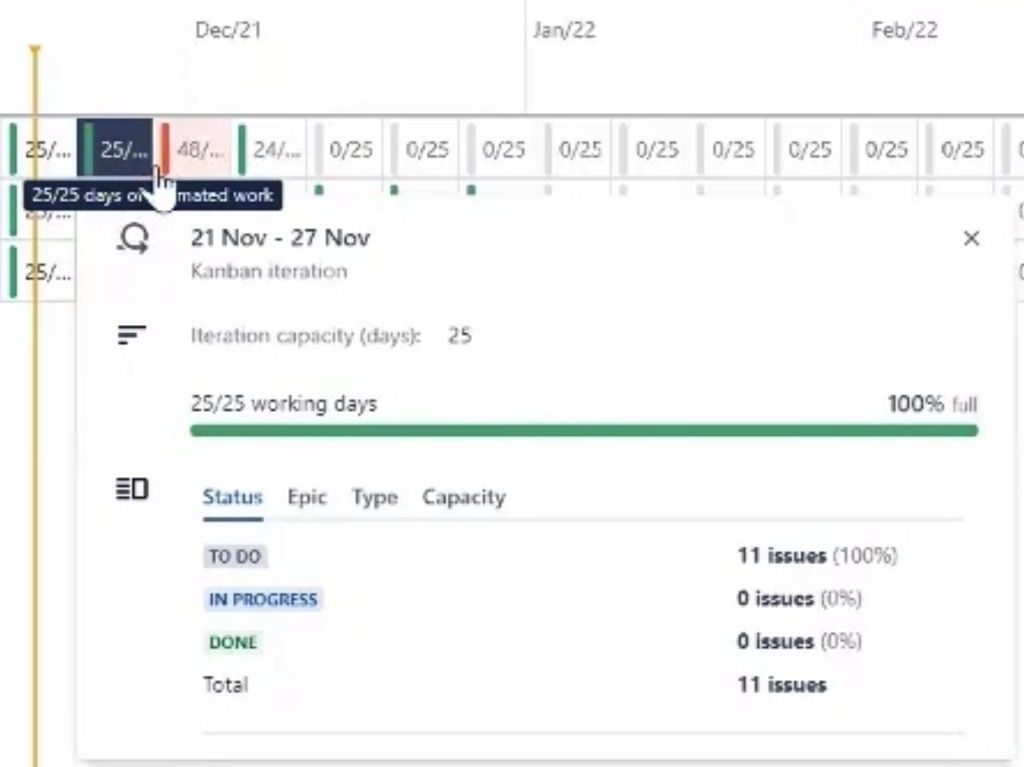
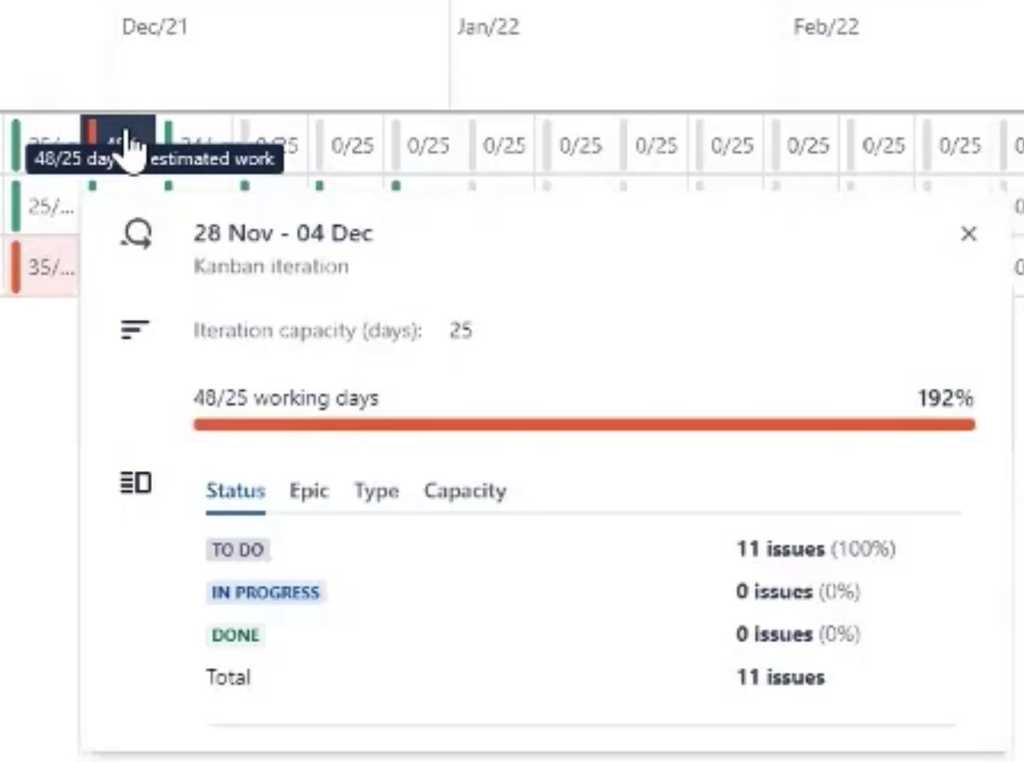
popup summary of each period kanban
kanban popup summary of each period

Let’s take a closer look at this important feature.
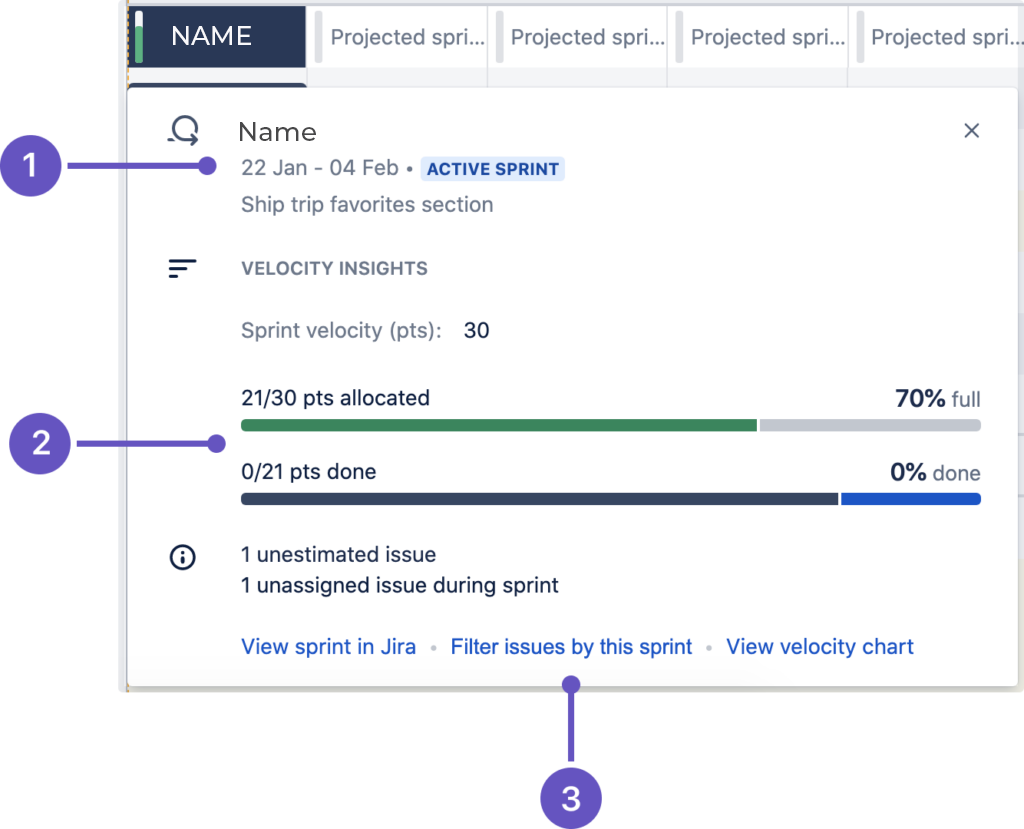
Sprint information
  1. Sprint information – Name, start and end dates, status lozenge, sprint goal (as defined by administrator), and total sprint capacity
  2. Progress bar – Story points allotted and completed
  3. Further viewing options for this sprint

For over-allocated time periods, if you expand to show the issues and add the Original Estimate field, or Sprint and Story Points fields, you can easily use AR’s regular planning functions to move issues around, adjust work estimates, start and due dates, etc.
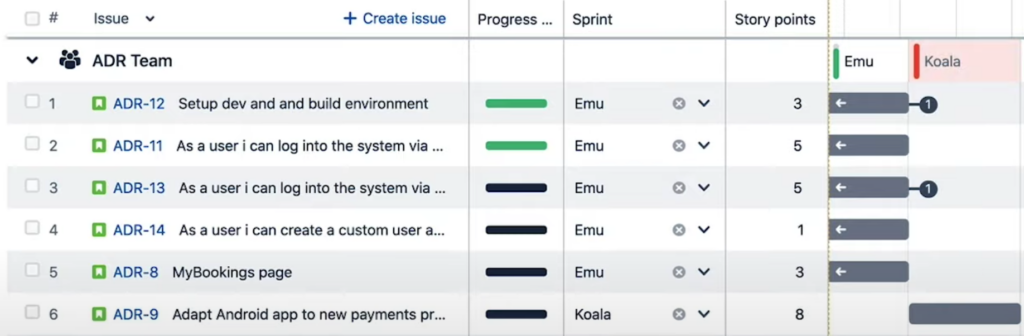
Original Estimate field, or Sprint and Story Points fields

How Capacity Decrements

When an issue is added to an iteration, it will consume the estimated value (story points or days/hours) from the capacity value set by your administrator. Issues that span multiple iterations will consume all remaining capacity of the first iteration before moving on to the next one. Capacity is assigned on a first-come, first served basis โ€“ meaning that pre-existing issues wonโ€™t be moved. This is true whether you’re using story points or time-based estimates.

Assigned issues that consume more capacity than is available in an iteration will generate a warning (if those are turned on). We recommend that any assigned issues that have an estimation value higher than the capacity be broken down into smaller subtasks or spread across multiple iterations.

Note that issues with start and end dates that fall within a sprint will consume capacity, even though theyโ€™re not assigned to that sprint. When monitoring capacity, these issues are marked with the label x issues not assigned to a sprint.

What This All Gets You

Now you can accomplish several capacity-related tasks:

  • Measure the capacity of one particular team.
  • Measure one team’s capacity, then manage the effect of that team’s capacity on other multifunctional teams.
  • Determine how many hours you have available in a certain role or skill set, say project manager or developer.
  • Identify where you need to resource up or scale down depending on over-allocation or under-utilization.

The visual capacity warnings are updated live as you click and drag to add scheduling โ€“ even at the Epic level.

Jira Advanced Roadmaps epic level

Generally, most enterprises and other sizable organizations need to understand where they’re deficient in one particular skill set or resource.

But wherever the capacity is that you want to manage, structure your teams to ensure that capacity can be measured.

The team-based model is a more scalable model, which is increasingly important the larger your organization is, and helps you with larger-scale challenges like staffing. If, however, you have unique resources, skillsets that don’t exist as a pool, then team-based capacity planning can break down โ€“ you need interchangeable resources at all levels and skills. The ideal scenario for team-based capacity planning is tracking what teams can actually execute on, and calibrating their availability based on their past performance.

The truth is, even with effective team-based planning in place, most organizations โ€“ even enterprise or large departments โ€“ will still want some level of individual capacity planning, to know what’s happening with specific critical resources for their projects and if those resources are being over-allocated or under-allocated.

Setting it up

There are several key configurations for effective team-based resource capacity planning in AR.

Setting up the right teams: You can use AR’s Teams to reproduce your Scrum or Kanban teams, or you can group people into skill sets, resource types, etc. Just think it through, because whatever you can’t manage the capacity of something you don’t configure here.
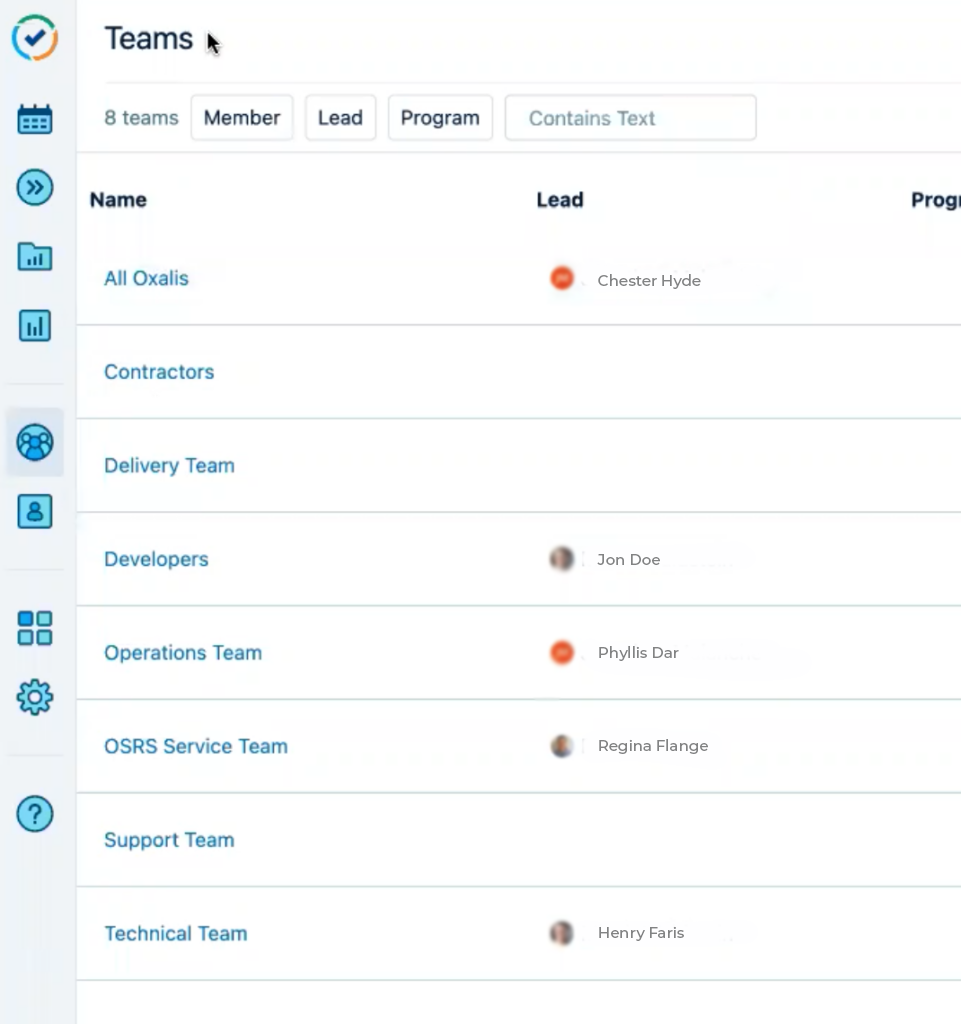
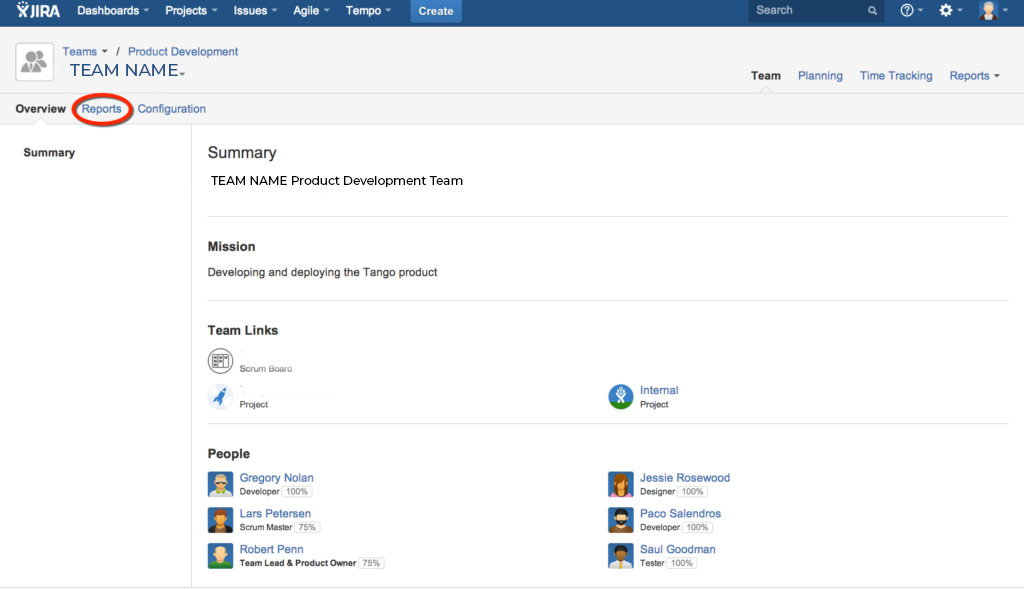
Effective team-based capacity planning in Advanced roadmaps

This is important even if your teams are cross-functional, like sprint teams of various types of resources, in which case your AR teams won’t match your teams in reality.

Choosing the right issue sources: Your plan must be configured to use the relevant team boards as the issue sources, so that the plan has access to the sprint information, like velocity.

Matching the team to the board: Each team in your plan must be configured to use the appropriate board as the associated issue source. If you create your plan using the team boards, this will happen automatically, otherwise you have to do it yourself.

Setting the team’s velocity (Scrum): If you’re doing sprints, each team’s sprint velocity must be set, since that is AR’s measure of actual work achieved; make sure it’s based on historical data, and not on guessing or wishful thinking.

Populating Story Points (Scrum): If you’re doing sprints, your teams must be strict about setting Story Points, since that tells AR how close to capacity each sprint is. Without this, you risk over-allocating sprints and not getting it all done.

Populating Original Estimate (Kanban): This serves the same purpose for Kanban as Story Points do for Scrum.

Keeping Work Remaining Accurate (Kanban): If AR thinks there’s more work left to do than there really is, then your resource capacity planning will be off. So everyone has to be diligent about updating the Work Remaining field.

Results and Benefit to the Organization

We’ve identified seven benefits your enterprise will experience when you are engaged in effective resource capacity planning. You will:

  • Keep all your employees working near their capacity, without either becoming a bottleneck or sitting idle.
  • Ensure resources are allocated where they’re needed most.
  • Keep all your projects, initiatives, etc., on track with realistic end dates.
  • Simplify re-allocating resources and work to different sprints or iterations.
  • Make it easy to slot new projects into timelines based on when the resources are available.
  • Improve hiring cadence by planning intake so new hires are in place and ready by the time theyโ€™re actually needed.
  • Schedule project milestones, code releases, and other delivery events efficiently because you see the impact on the teams involved.

In this data-driven world, capacity planning data opens the door to a new level of operational success.

Get started with the tools your team actually wants to use

Inevitably, enterprise-level tools like Tempo Planner, EazyBI, and Jira’s Advanced Roadmaps have more to offer on resource capacity planning than any one article can reasonably cover.

We get it. Your organization has unique workflows that constitutes smart solutions, freeing up valuable time for your teams to operate more efficiently is more important now than ever. The team at Oxalis is here to help you transform processes within your organization โ€“ get started today.
Donโ€™t miss these posts:

Advanced Roadmaps for Jira: Overview and Comparison

What is Advanced Roadmaps for Jira?

Note: This article presumes some familiarity with Jira Software and agile concepts.

Advanced Roadmaps for Jira (“AR”) is a cross-project planning tool for Jira Software that is built into the Cloud Premium and Enterprise versions โ€“ as well as Data Center versions 8.15 and up โ€“ and expands the capabilities of the basic Roadmaps feature in Jira Software. Since Atlassian is continuously enhancing this invaluable tool, it’s easy to have questions about AR’s capabilities and how to best utilize them to optimize your business. Who is Jira Advanced Roadmaps for? What are its major benefits?  

Advanced Roadmaps for Jira expands your options and gives you greater control over your planning. 

  • Is your team’s planning taking up too much of your time hindering work productivity?
  • Are you sure your resources are being used effectively?
  • What can you accomplish with AR capabilities?

We will look at eleven improvements AR can instantly apply to your business model. Let’s dive into the specifics on Jira’s Advanced Roadmaps and navigate the most frequently asked questions you may be experiencing. We will also be comparing the pros and cons and key differences between Structure.Gantt, Big Picture, Tempo Planner, and Advanced Roadmaps. Which system will work best for you? See our Solutions Comparisons Chart below.

Overview of Roadmaps

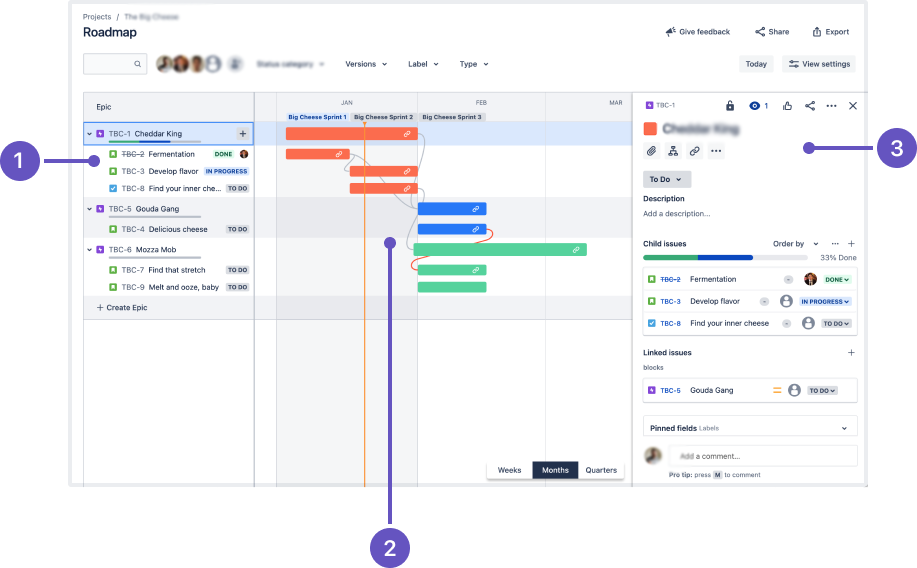
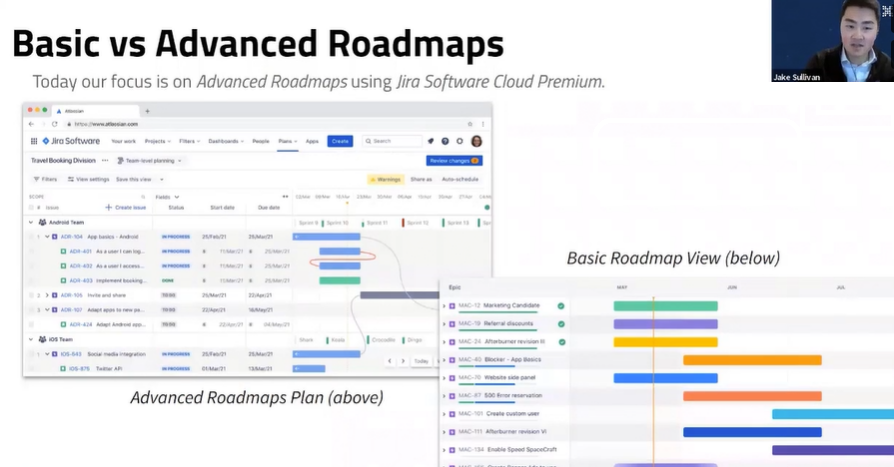
Roadmaps are a Jira Software feature that provides Jira with Gantt charts to visualize data from one team’s issues in a single project. They work with Epic, Story, and Task issue types, in a customizable interface that allows you to: see custom fields, each issue’s type, name, and status; view the Gantt chart including dependencies; and update issues without leaving the chart. And because a roadmap accesses your existing boards, projects, and filters, it always provides real-time data. These simple planning and dependency management features help your teams better visualize their work and manage it better together, so you can release more predictably while staying on target to achieve your goals.

Jira advanced roadmaps dasboard

Building on the roadmap feature in Jira Software, AR enables project planning across multiple teams as well as providing additional features for larger organizations. 

What can you do with Advanced Roadmaps capabilities?

The benefits of this software are vast. You can plan work across all teams and projects, identify dependencies, adjust plans based on resource capacity, explore alternative planning scenarios, create custom plan views for differing audiences, and give everyone in each team the same visibility based on the real-time work they’re doing in Jira Software.

Advanced Roadmaps for Jira expands your options and gives you greater control over your planning.  You can: define only the issue sources, statuses, and releases you want your plan to incorporate; add as many additional levels to your issue type hierarchy as you want; build plans that include roadmaps for as many teams and projects as you want; and more.


Overview

11 Key Features of Jira Advanced Roadmaps

  • Create broader and more encompassing plans
  • Plan and track work strategically across multiple teams and projects
  • Help multiple teams collaborate together
  • Track the big picture
  • Enable a single source of visibility across planned work for everyone, so that priorities are understood and shared
  • Identify dependencies across large pieces of work that can impact your timeline (even if they live outside your plan)
  • Plan based on team capacity and velocity, scheduling work at a pace your teams can handle to ensure that your plan is attainable
  • Empower teams at scale
  • Manage competing priorities
  • Set business goals and track progress towards them
  • Explore alternative scenarios, whether to determine more effective arrangements of work or to determine how a potential future event might affect your capacity, timelines, etc.

Who Should Use Advanced Roadmaps for Jira?

Generally speaking, large to enterprise businesses with large portfolios of work will benefit most from AR’s advanced planning capabilities. Any user with permission can also create a plan for personal use or for team/project purposes to track dependencies at any scale.

Existing Jira Software Users

If you’re already using roadmaps in Jira Software, and find yourself up against the following limitations, Advanced Roadmaps will let you plan larger.

Solve Common Problems

If you’re not already using Jira Software, Advanced Roadmaps for Jira can help you solve some problems that organizations often face.

Are your resources being used effectively?

Project managers and administrators (along with scrum masters and those in SAFe roles such as product owners and release train engineers) are often asked when features, upgrades, and systems can be delivered. Even in an Agile environment using scrums, with deliverables broken into sprints, you still need to know when they’ll be delivered, whether theyโ€™re on track, and if you have enough resources.

AR shows your forecasted release dates so you can see dependencies and capacity bottlenecks, and understand the current situation as well as future activities and their statuses. It also lets you play with different versions of your plan to see how various factors may affect delivery dates.

Is planning taking up too much of your time?

Every hour spent creating spreadsheets or Gantt charts is time not working towards releases โ€“ and by the time that hour is done, employees have done more work that makes those spreadsheets or Gantt charts out-of-date. Unpredictable factors like holiday plans and illness, or team members being reassigned between projects, can quickly render a static plan obsolete and require inconvenient rework.

Advanced Roadmaps for Jira provides a clear view of whoโ€™s doing what, and when, showing project progress and backlogs based on real-time data. The moment someone finishes a task early โ€“ or misses a due date โ€“ you’ll see how that affects the rest of your plan. The Teams and Capacity features let you group, filter, and allocate work based on assigned team members and their availability as it changes.

Spending too much time providing updates to higher-ups?

Stakeholders who aren’t involved in the day-to-day detail of a plan still need to know who’s working on what, and often want meetings to get an update on the current status. Again, those meetings take time away from productive work toward deliverables.

AR enables different views of a plan that are tailored to specific audiences, so each level of management can check real-time status at the level of detail they need, whenever they need it. You won’t have to trade off progress visibility for team overhead. 

Features in Advanced Roadmaps for Jira

Plans

Plan in jira advanced roadmaps

A plan combines the roadmaps of multiple teams working across multiple projects, and ladders them to company-wide initiatives. It provides a shared source of truth that outlines organizational goals and communicates a path for teams to achieve milestones and key results.

The benefit of using a plan is that it establishes the bigger picture and shows how a teamโ€™s work relates to the work of other teams. It visualizes how each team contributes to broad organizational goals, and enables you to identify potential bottlenecks and conflicts so you can adjust before they cause problems.

Unlimited Issue Type Hierarchy

Unlimited Issue Type Hierarchy

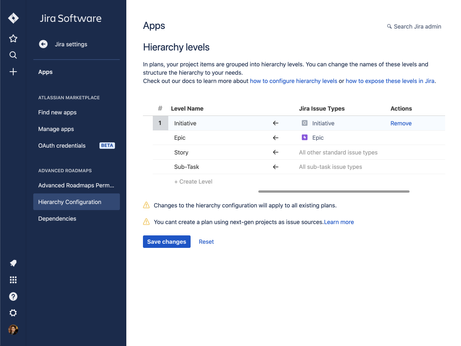
A hierarchy connects small, process-based tasks to cross-functional deliverables, and escalates them to broad organizational objectives. Depending on how your work is structured, hierarchy levels represent different levels of detail in a planโ€™s scope and show how theyโ€™re related.

AR allows you to ladder work from multiple teams and projects to company-wide initiatives. With the freedom to create unlimited levels of issue type hierarchy above Epic, your teams and organization can plan smarter.

Saved Views and Smart Filters

Saved views allow you to tailor your plan for different audiences. Customize your plan to emphasize different aspects, then save it as a view that can be easily accessed at any time.

Saved Views and Smart Filters

This is particularly useful for large, cross-functional projects, where different stakeholders view your plan with specific concerns or needs in mind. With a single view of important initiatives, you can plan and track how youโ€™re making progress on the big picture across multiple teams.

Smart filters ensure you can always share the right data of your roadmap for every stakeholder.

Smart filters Jira Software

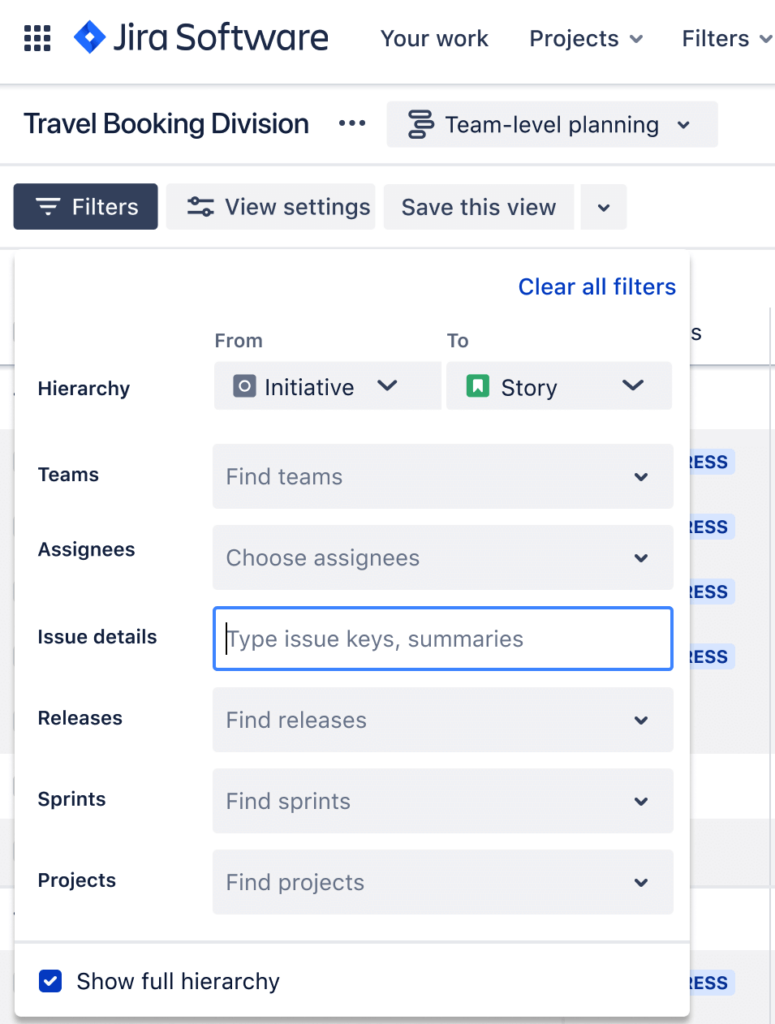
Find and refine your roadmap by searching for keywords and filter by assignee, status, label, or issue type.

Together, smart filters and saved views let you keep everyone at every level up to date on the plan โ€“ in the exact way they need.

Dependencies

Jira Advanced roadmap dependencies

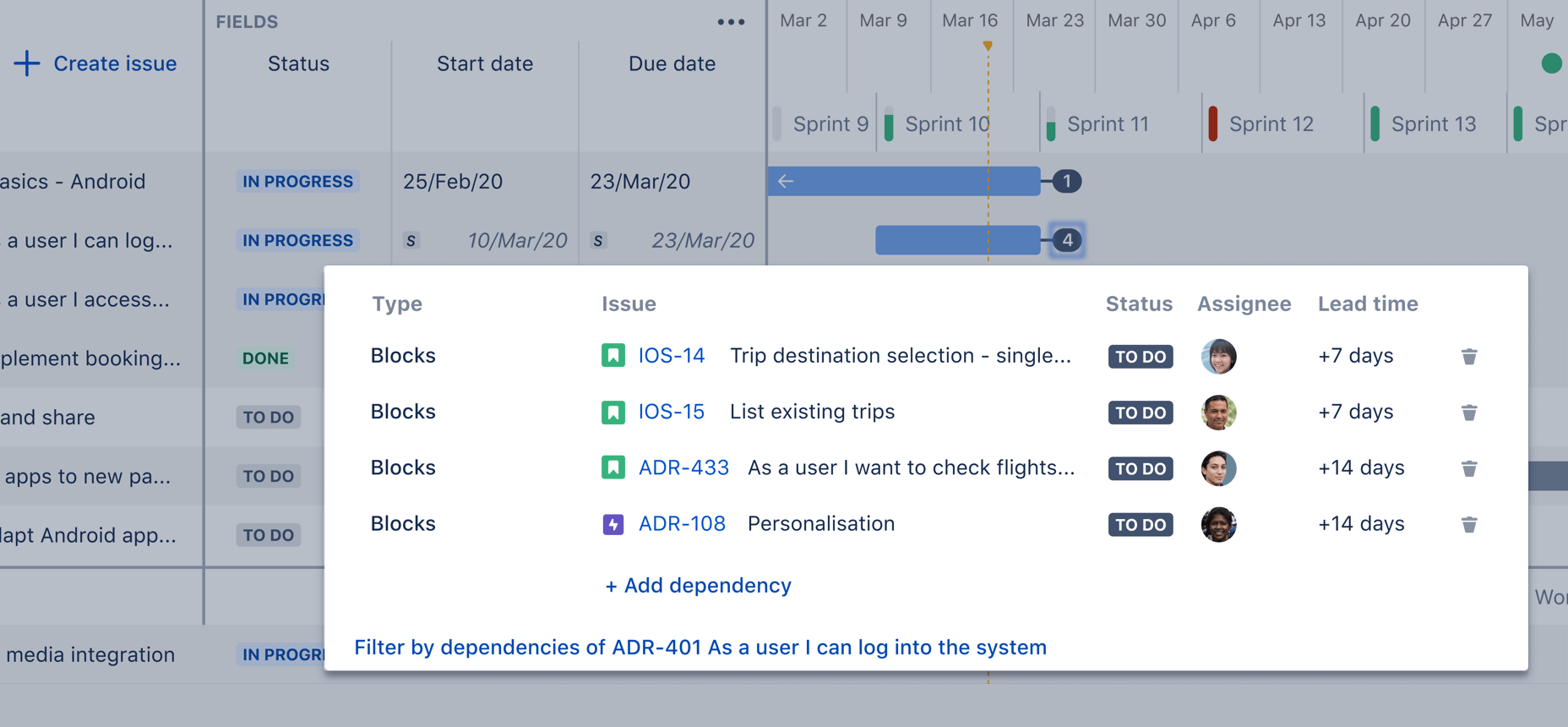
Dependencies show the relationship between issues in your plan, such as contingencies and blockers. A dependency can be incoming or outgoing, revealing when an issue blocks other issues, or is blocked, and what issues to prioritize to ensure that work progresses. They are shown on the timeline by badges, columns, or lines. 

Visualizing and understanding dependencies is vital when project or program managers determine a critical path in the roadmap. When dependencies are thoroughly mapped, a team can adapt and plan for alternative paths. Track dependencies across teams, projects, and initiatives to get ahead of blockers across your organization.

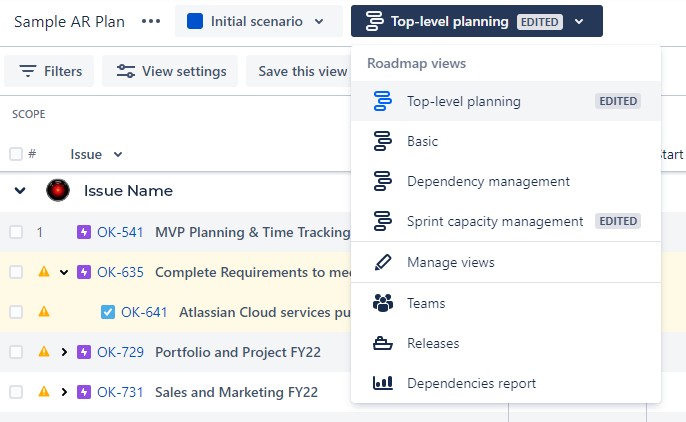
You can also view dependencies in the Dependencies report tab, which visually maps relationships between issues in your plan.

 Alerting: Advanced Roadmaps will alert you if a team is booked over the assigned capacity, or if a project is past its end date yet still in progress.

Capacity

Advanced roadmap team capacity

Capacity reveals the units of work that a team undertakes in a given period of time. It can be used to estimate a teamโ€™s ability to complete work by a particular milestone, and is invaluable for evaluating risk when making key decisions.

Capacity is added to the plan by team and domain leads who regularly assess their teamโ€™s availability, resource allocation, and the prioritization of other projects. Keep your goals on track by accounting for whether your teams have bandwidth to complete the work theyโ€™ve scoped. See multiple teams’ capacity on a sprint-by-sprint basis.

Scenarios

Advanced roadmap scenarios

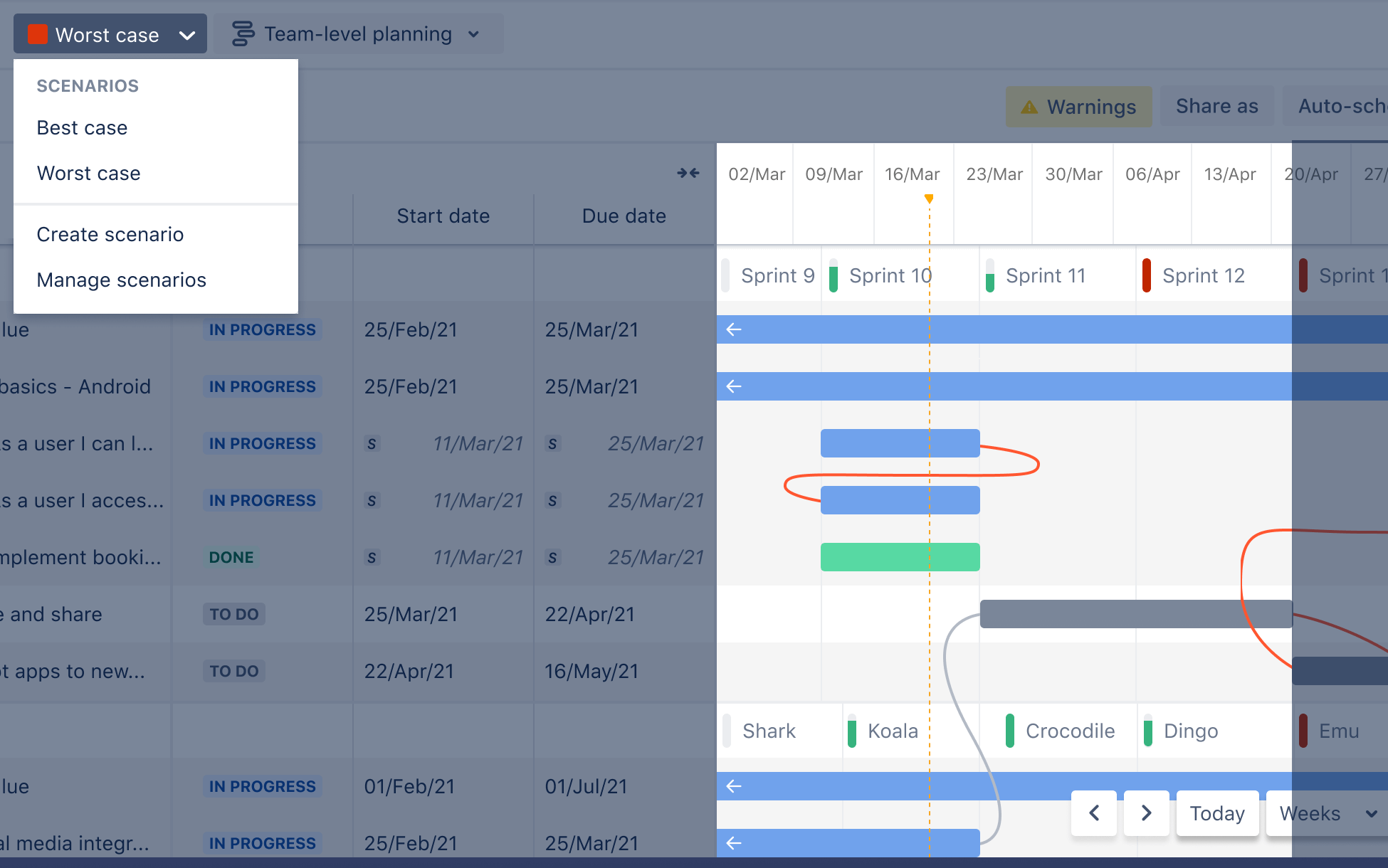
Scenarios allow you to explore alternative paths to milestones or project completion. Planning with different scenarios allows you to adapt with minimal disruption. You can aim for your best case, plan for your worst case, and be prepared for anything in between.

A scenario is like a copy of your plan, complete with its own set of data, and any changes you make won’t affect the “live” plan unless you choose to save them to it.

Issue sources and Exclusion rules

Issue sources determine what data will be used in Jira Software to create a plan. They outline the work to be done and the problems youโ€™re trying to solve. Issue sources are first selected during plan creation and can be adjusted at any time.  They include boards (scrum for planning sprints or kanban for work planning based on available weekly hours), projects, and filters (saved searches in Jira Query Language).

Exclusion rules allow you to refine your planโ€™s issue sources so the most relevant issues are displayed. Depending on your focus, you can set rules to exclude specific issue types, statuses, or releases. You can also adjust how long youโ€™d like completed issues to stay in your plan.

Together, these parameters help you right-size your plan and prevent irrelevant data from cluttering it up.

.


Jira Advanced Roadmaps Webinar On-Demand

Watch our Jira Advanced Roadmaps Webinar On-Demand


Advanced Roadmaps Compared to Similar Solutions for Jira

As you might imagine for something as vital as planning tools, Advanced Roadmaps is not the only solution available for Jira. Atlassian’s marketplace offers a number of alternatives, and here we’ll take a look at three popular choices and how they compare to AR.

All these products have a wide array of features, and it’s beyond the scope of this article to touch on all of them. We’ve tried to highlight the significant features that in our experience will affect the most organizations.

BigPicture

big picture screenshot

BigPicture describes itself this way: “BigPicture is the leading Portfolio, Product, and Project Management application for Atlassian Jira. It gives managers unprecedented clarity of information, helps them neatly visualize even the most complex initiatives, smartly distribute workload and allocate resources, efficiently coordinate work of teams, easily report on progress, and ensure perfect strategy-to-execution alignment at all levels. The system supports agile, classic, and hybrid management methodologies and allows for combining them freely at the portfolio level. BigPicture is the go-to PPM solution for any forward-thinking organization before, during, or after digital transformation.”

Three Basic Concepts

BigPicture is a distinctive solution that can take some time to understand, so the following concepts should give you a good overview.

The Box

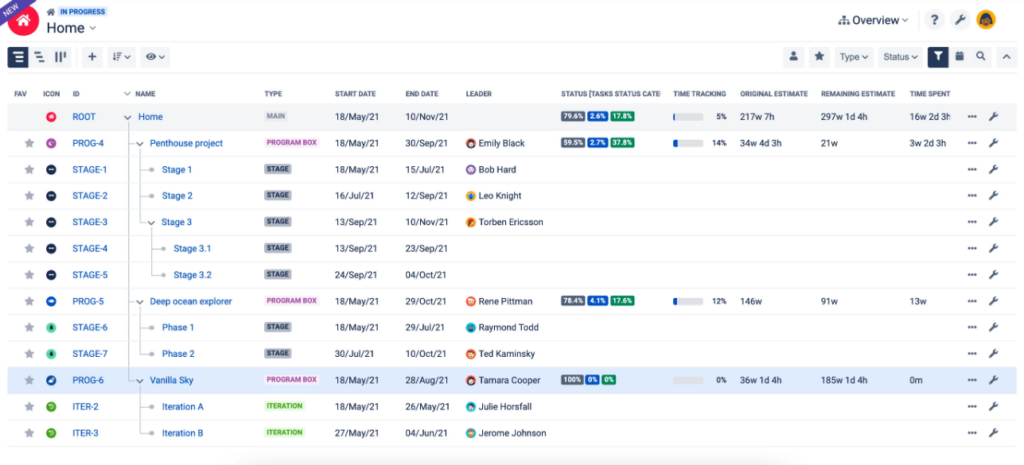
The fundamental organizational concept โ€“ and data object โ€“ in BigPicture is the Box. A Box can be thought of as a fancy customizable data container, or folder, that can contain a full spectrum of project management objects for differing PM approaches (e.g., you can mix Agile and Waterfall), and that can contain other Boxes. The possibilities for Boxes include: SAFe ART, Portfolio, Task, Resource, Risk, Scrum project, stage, iteration, and more. Each level of your Box hierarchy comes with its own set of views on the state of the work in that Box. The point being, at each level you can get “the big picture” in a variety of ways, such as that level’s own Gantt chart, or Scope overview, etc. โ€” and each of those views can be customized. BigPicture comes with a set of built-in Box types, but you can create your own. Each Box type has its own default Status as well as one or more default parent Box types, enabling default hierarchies.

The Task

In BP, all Jira issue types are called Tasks. Separate from the Box hierarchy is the Task hierarchy, which is an ordered list of elements BigPicture uses to determine the hierarchy. You can use built-in elements like Project, Epic, Version, Component, and Sprint, or you can use a Jira link type to define the parent/child relation. By default, the Task hierarchy is defined per Box type, but an individual Box can be configured with its own Task hierarchy.

The Module

A Module is like a specialized filter that shows a distinct view of a subset of the data in a Box, such as Overview, Gantt, Scope, Board, Roadmap, Resources, Team, Risks, Calendar and Reports. Each module can be turned on or off for each Box type.

As an example, the Resources module displays which individuals and teams have been allocated to what, and you can freely change their allocation or the tasks they are assigned to directly in the add-on. These changes are synchronized not only with Jira issues but also with other relevant modules like Gantt.

Putting Them Together

When you combine the top-level organizational capacity of Boxes and the Box hierarchy with the issue-level organization of the Task hierarchy, and the variable choice of Modules, it should be easy to see how BigPicture could be customized to build a solution that fits your organization’s needs fairly well. Of course, with great flexibility comes great configuration setup time, so be realistic about whether your organization and teams will be able and willing to put in the time; paying for a highly flexible solution but not using that flexibility fully can be a waste of money.

BigPicture Server vs. Cloud

BP Cloud depends on the functionality and API of Jira Cloud, which do not offer everything Jira Server offers, so there are a number of relatively minor features lacking from BP Cloud. These include: in the Gantt box type’s Scope Module, the Detail View; the “status” field cannot be edited inline; there are no JQL hints as you type in Search Box and Quick filters.

For the full list, see the BigPicture documentation.


BigPicture vs. Advanced Roadmaps: Key Differences

BigPicture Pros
  • Allows multiple management methodologies and frameworks (e.g. Waterfall and Agile) in the same context, rather than having to choose one for each project as in AR.
  • The ability to specify PTO including holidays and vacation time, which AR lacks.
  • XML and CSV exports are available, whereas AR only has CSV.
  • Comes with a REST API, which AR does not โ€“ though Jira does.
BigPicture Cons
  • The Kanban board is underdeveloped compared to the Scrum board; each type is equally well-developed in AR.
  • The estimated time in Jira issues is not pulled through, though Story points are.

Enterprise version

BigPicture Enterprise is an “expansion pack” that adds a handful of useful features onto BigPicture. Some of these additional features include: more preconfigured Box types since BP comes with only three (the additions include Agile project, Classic project, Hybrid project, Portfolio, Program, SAFe, and more), unlimited custom Box types, ability to relabel modules, unlimited scenarios per Box. Generally, we find that BigPicture Enterprise isn’t worth the additional cost, especially for teams who have a standard and consistent usage of Jira.

BigPicture vs BigPicture Enterprise

Big Picture Enterprise has additional features BigPicture does not offer, such as:

  • Additional stock Box types, including Portfolio, Waterfall project, Hybrid project, Agile project, along with the freedom to configure your own Box types
  • Tempo and Trello integration
  • Multi-level rollup (project up to a program)
  • View and report on multiple programs at once
  • Unlimited configuration
  • Configurable module names
  • Unlimited what-if scenarios

Read More

For more information on BigPicture, start with the app’s page in the Atlassian Marketplace, which contains links to BigPicture documentation and more.

Structure.Gantt

jira software structure.gantt

Structure is a Jira plugin that uses real-time issue data to easily visualize and track the status of multiple projects, across an entire portfolio. Within Structure, work can be grouped by and filtered on field values to organize information based on common themes or groupings.

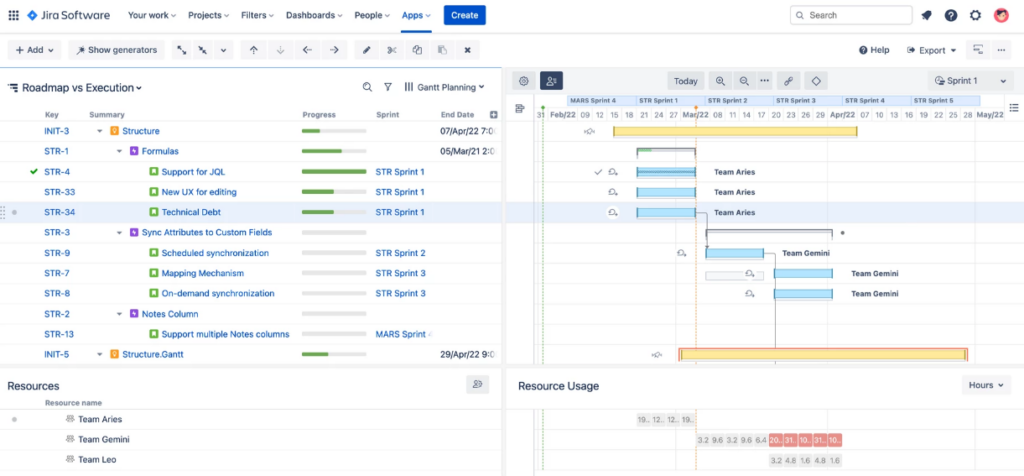
The extension Structure.Gantt (“S.G”) โ€“ a separate product โ€“ provides additional modules and functions, including the Gantt and Resource views. S.G allows progress to be visualized through the use of Gantt charts by issue to identify potential problems or sticking points. The Resource module shows resource allocation by a user based on previously defined capacity metrics to help visualize resource capacity across the organization. Without S.G, Structure isn’t a viable alternative to Advanced Roadmaps for Jira.

Structure.Gantt enables new components: a Gantt chart and a Resource Planning view.

Scheduling: S.G charts allow either Automatic or Manual Scheduling. Automatic Scheduling uses the Project Start Date, Issue Durations, and Dependencies to determine how the issues should be scheduled in a waterfall. Manual Scheduling places issues on the Gantt chart based on their Due Date and Duration.

Resource Planning: Adds to the screen a list of users and a calendar view of their assigned work based on duration.

Key Concept: Structures

Structure is so named because one of the key features is a hierarchical arrangement of Jira issues in table format, called a ‘structure.’

Structures can be defined manually, or using preset choices like traditional agile hierarchy or issue status, or using dynamic generation mechanisms like JQL searches and boards. Each structure can be modified with grouping, filtering, and sorting, and can be extended to include child issues. Structures display as tables, with issues for rows and issue data for columns; in addition to Jira fields, column types include Progress, Totals, and Formula.

You can create a private version of a structure to play around with, and save a snapshot of that private version called a Perspective which you can share with other users or save as a bookmark for future use. Structures can also be grouped into folders for ease of organization and navigation.

Highlighted Features 

  • Scaled Agile Implementation: scale more smoothly, by showing the essential information on any level, be it portfolio, program, or team.
  • Unlimited Hierarchy: The ability to automatically apply the issue hierarchy as defined in Jira. Users can also create their own hierarchies manually to align to personal preferences for issue layout within Structure. 
  • Portfolio Views: Issues can be pulled from multiple or all projects within Structure, which provides the ability to visualize all important issues and milestones across the entire organization, in one place.
  • Pre-Set and Custom Templates: Save time and effort by creating Structures as templates for repeated use. Users can easily clone Structures to continue building on the base configuration for different purposes or views. 
  • Visualize Relationships: View dependencies and issue linkages with visualized relationships. Create new dependencies or visualize those in existence with drag and drop functionality. 
  • Aggregated Field Values: Sum up all time spent on issues in a project or in an Epic, useful for comparing high-level estimates with actual time logged.

Structure.Gantt vs. Advanced Roadmaps: Key Differences

Structure.Gantt Pros
  • Due date is calculated using task duration estimate and capacity, whereas Due Date is a separate field in AR. This is mostly a matter of preference.
  • Rest API available, which AR lacks.
  • Customizable calendar allows the ability to include workday exclusions to represent PTO; AR lacks support for PTO.
Structure.Gantt Cons
  • Due date is calculated using task duration estimate and capacity, whereas Due Date is a separate field in AR. This is mostly a matter of preference.
  • In order to use Gantt charts and engage in resource planning, you have to pay for the Structure.Gantt product, which costs as much as Structure. AR, of course, is an all-in-one solution.
  • Dependencies are displayed on an issue by issue basis, not by resource; AR can link projected capacity to demonstrate dependencies.
  • Capacity is tracked through issue status and issue related progress, not by individual or team resource; AR offers some ability to manage capacity on an individual level.
  • IE browser is not supported.

Structure Server/Data Center vs. Cloud

The Cloud version lacks a number of features present in the Server and Data Center versions, including:

  • The maximum structure size is limited to 10k rows.
  • Inline editing is not available for some fields.
  • Sharing of Perspectives is unavailable.
  • Users cannot search for structures by owner / permissions.
  • Issues from all projects are available to all structures.
  • All users with access to the app can create/edit structures.

For a fuller list of the differences, see the Structure documentation.

Read More

For more information on Structure and Structure.Gannt, start with the Atlassian Marketplace’s pages for the app and for the extension, which contain links to documentation and more.

Tempo Planner

Tempo planner dashboard screenshot

Tempo describes its Jira app this way: “Tempo Planner is a capacity and allocation tool, perfect for project teams with strict deadlines where resources are allocated based on availability, role, and more.” So that should give you a sense for where it focuses as a solution.

Tempo Planner (“TP”) is a more targeted product than the others we’re examining, focused on enabling users to allocate the time of resources against tasks and projects. Within that wheelhouse, it offers good flexibility and options. If you’re looking for additional functionality like managing Work Breakdown Structures or planning across a larger scale like a project or initiative, TP may not meet those needs. In fact, TP uses the word “plan” to refer to a timeline of work allocated for a resource, and NOT a larger scale assembly of those timelines for a project or initiative.

Note that if you’re already using Tempo Timesheets for Jira, you’ll get more out of Tempo Planner than if you’re using another solution for time tracking/reporting.

Most Common Use Cases

According to Tempo, its Planner product is used most often for these use cases:

  • Resource Capacity: Balancing workloads and understanding current resource allocation.
  • Estimate Need for New Projects: How many more new initiatives can you fit into your schedule, and does your team need more projects.
  • Allocate Resources: Assign resources to tasks based on roles, availability, or teams.
  • Measure Against Plan: Compare planned time to actual hours logged, with easy reporting to add/remove staffing (requires Tempo Timesheets).
  • Learn and Improve Efficiency: Look back at previous projects to better estimate future projects, including project profitability.

Highlighted Features

  • Plan multiple scenarios using actual hours pulled from Tempo Timesheets (if you use it).
  • Rest API available as well as export/import options to CSV and XML.
  • Schedule individuals and teams on a project, task, or ticket level. Allocate or request resources for high-impact initiatives while ensuring workloads are balanced and realistic.
  • Track the allocation of every team and user for weeks or months into the future.
  • Allow multiple users to plan time on the same issue, and filter any set of users you need.
  • Leverage various Resource Planning views to quickly see the current state of all projects and resources. Use the Capacity Report to effortlessly review several commitments at once and simplify progress monitoring.

Tempo Planner vs. Advanced Roadmaps: Key Differences

Tempo Planner Pros
  • Full, easy integration with Tempo Timesheets, which provides a number of advantages over Advanced Roadmaps, like planning with actual work hours vs. estimates.
  • Filters provided for resource search, resources listed with name, role and discipline; AR has capacity reports capacity by team, but not the individual resource (though there are partial workarounds).
  • Rest API available as well as export/import options to CSV and XML. AR only offers export as CSV, and no API.
  • Holidays and PTO included in resource capacity, which AR lacks.
Tempo Planner Cons
  • Lacks the ability to plan with issue hierarchies such as Work Breakdown Structures โ€“ planning is focused on allocating time to resources. Issue hierarchies can be created using links in Jira, and then the issues can be imported to create plans, but there’s no way to manipulate the structure in TP. AR, of course, being built in to Jira, gives you full access to issue hierarchies.
  • Limited ability to view cross project dependencies by resource; a partial solution is possible with filters and reports, whereas AR offers the ability to link projected capacity to demonstrate dependencies.
  • Changes to Jira issues made in a plan are not synced back to Jira.
  • No Gantt charting, which AR has built-in.

Tempo Planner Server vs. Cloud

The Server version has a number of features lacking in the Cloud version:

  • Members can be added to a Team using Jira groups.
  • Member permission roles can be added to a Team using Jira groups.
  • Staff members can be organized into roles, locations, working schedules, and holiday schemes.
  • Cloud has only Capacity Reports for teams, whereas Server can also report on staff capacity by role, user, location, program, account, and project.

Read More

For more information on Tempo Planner, start with the app’s page in the Atlassian Marketplace, which contains links to TP documentation and more.

Solution Comparison Table

Note: This table serves as an overview, but should not be relied on for purchasing decisions. Always identify your organization’s and team’s must-haves, and enlist expert assistance to determine for certain โ€“ and at the level of detail you need โ€“ whether a solution meets your needs.

ItemsBigPictureAdvanced RoadmapsTempo PlannerStructure + Structure.Gantt

Modules
Roadmapping (planning)โˆšโˆšLimited capacity for large-scale planningโˆš
Gantt chartโˆšโˆšโˆš
Resourcesโˆšโˆšโˆšโˆš
Teamsโˆšโˆšโˆšโˆš
Work Breakdown Structureโˆš โˆšโˆš
Reportingโˆšโˆšโˆš โˆš

Hierarchies (Work Breakdown Structures)
Unlimited hierarchy depthโˆšโˆšโˆš
Configurable viewsโˆšโˆšโˆš
Filteringโˆšโˆšโˆš

Selected functionalities
Are portfolio-, program- and project-level plans (roadmaps) linked together?โˆšโˆš
Sync- and re-sync with JiraโˆšN/Aโˆš
What-if scenarios (sandbox before committing changes)โˆšโˆšโˆš
Track progress of projects/programsโˆšโˆšโˆš
JQL filtersโˆšโˆšโˆš
Dependencies between issuesโˆšโˆšโˆšโˆš
Milestones / Releasesโˆšโˆš
Drag & drop tasks into plansโˆšโˆšโˆšโˆš

Resource planning
Skillsโˆšโˆšโˆš
Story pointsโˆšโˆšโˆšโˆš
Capacity planningโˆšโˆšโˆšโˆš
Holiday plansโˆšโˆšโˆšโˆš
Vacation plansโˆš by adding exceptions to team membersโˆš by adding exceptions to team membersโˆšโˆš

Project management paradigms / methodologies
Project/program-level managementโˆšโˆšโˆš
Agile (Scrum & Kanban)โˆšโˆšโˆš
Portfolio-level managementโˆšโˆšโˆš
Mixed methodology teams (Scrum/Kanban)โˆšโˆš
Iterations (Scrum)โˆšโˆšโˆš
SAFeยฎโˆšโˆšโˆš
Waterfallโˆšโˆšโˆšโˆš

Import/export features
APIโˆšJira has an API, but AR does notโˆšโˆš
Supported file typesExport to csv; import available through Jira
csv, xls, xlsx, pdf

(a) xls, printable page โ€“ with Structure for Jira

(b) pdf, svg โ€“ with Structure.Gantt
Sample featuresNo export or import to BigPicture is possible without paying for the extension
BigTemplate.

Share a read-only link to a plan or embed an iframe.

Export/import plans from team timelines to csv files.

(a) You can download the structure that you see on the screen as an XLS file.

(b) You can produce a PDF or SVG file with your Gantt charts using configurable export.

Business data & Annual pricing
500 users
Bigpicture: $10,795 BigTemplate $3,745

$7705

$9020, Gannt.Structure $2655 = total $11,675
Jira Data Center, 100 users, Atlassian Marketplace
Bigpicture: $3,750 BigTemplate $625
1-500 users in Jira Software DC $42,000
$3300

$2780, Gannt.Structure $900 = total $3,680
Jira Cloud, 500 users
BigTemplate $3,745
Jira Software Premium: 500 users $51,000
$7705

$9,020, Gannt.Structure $2655 = total $11,675
Developer
Appfire (Platinum Marketplace Partner)

Atlassian

Tempo (Platinum Marketplace Partner)
ALM Works (Platinum Marketplace Partner)
Pricing is as of March, 23rd 2023

Contact Us

Recommended blog posts

As you know, Jira’s Advanced Roadmaps features and capabilities are complex. But that doesn’t have to mean AR has to confusing for your business. Oxalis is an Atlassian Platinum Solution Partner, which means we can help guide you through these services and best determine the options for your business:

Your Atlassian Expert Just Leveled Up: Meet Oxalis, Your Platinum Solution Partner

Oxalis is an Atlassian Platinum Solution Partner

We’re thrilled to announce that Oxalis has reached a significant milestone: we’ve been recognized as an Atlassian Platinum Solution Partner. This is the highest level of partnership within Atlassian’s ecosystem, and it underscores our unwavering commitment to providing exceptional service and expertise to our customers.

A Journey of Growth and Recognition

Our journey with Atlassian began in 2018, and we’ve steadily built a reputation for excellence. Within a year, we received the Rising Star AMER award, and now, in 2022, we’ve ascended to the pinnacle of Atlassian partnerships. Achieving Platinum status is no small feat โ€“ it requires a rigorous demonstration of our team’s experience, product knowledge, and proficiency across the entire Atlassian suite.

Elevated Service and Support for Our Valued Customers

What does this mean for our customers? It means an even higher standard of service and support. As a Platinum Solution Partner, we have access to premium resources that allow us to expedite customer requests and deliver swift resolutions.Our team of certified experts ensures that your Atlassian projects are in the most capable hands.

“We’re incredibly proud of this achievement and excited to continue our close collaboration with Atlassian.ย Achieving Platinum status empowers us to better serve our diverse clientele across industries and sizes,ย and it’s a testament to the hard work and dedication of our team.”

โ€” Jonathan Malanche, CEO, Oxalis

Unlocking the Full Potential of Atlassian

Whether you’re a new or existing customer, Oxalis is your trusted partner for all things Atlassian. We can help you:

  • Optimize Your Investment:ย Evaluate your current Atlassian setup to ensure you’re getting the most out of your licensing and resources.
  • Streamline Workflows:ย Implement customized solutions that enhance collaboration,ย boost efficiency,ย and drive business results.
  • Navigate the Cloud Transition:ย If you’re still on Atlassian server or data center,ย we can seamlessly guide your migration to the cloud,ย ensuring a smooth and successful transition.

Your Atlassian Success Story Starts Here

Ready to elevate your Atlassian experience? Contact us today for a free, no-obligation consultation. Let us show you how our Platinum-level expertise can transform your business.

Lucid Software: A Cloud Migration Success Story

We’re proud to have partnered with numerous organizations to achieve outstanding results with Atlassian. One notable success story is our collaboration with Lucid Software. We helped Lucid migrate their on-premises Atlassian tools to the cloud in just 30 days, unlocking numerous benefits and enabling them to focus on innovation and growth.

โ€œWe trusted them as experts, so we were able to come together, filter out the noise, and collaborate on solving the truly hard problems.โ€

โ€” David Torgerson, V.P. of Infrastructure & IT, Lucid Software

Don’t Just Migrate, Transform Your Business

We understand that an Atlassian cloud migration is more than just a technical move. It’s an opportunity to reimagine your workflows, enhance collaboration, and drive real business outcomes. Let Oxalis be your guide on this journey.

Ready to Get Started?

Take the first step towards a more efficient, collaborative, and successful future. Fill out our contact form for a free consultation and let us show you how we can make your Atlassian vision a reality.

Recommended blog post

Oxalis and Lucid Cloud Migration Featured by Atlassian

Cloud migrations can be simple and effective with Oxalis, learn how our team helped Lucid transform teamwork and improve collaboration.

Why is Atlassian Cloud better, faster, and more reliable? Find out by watching the video below.

Learn how Lucid moved to the Atlassian Cloud

  • No longer has to worry about server infrastructure
  • Is able to focus on their core business
  • No longer has to worry about security and backups

Lucid understood that the move to Atlassian Cloud was less about the technical overhead and maintenance challenges with on premise software, and more to do with focusing their organization and equipping their team with state of the art capabilities support their main products and services.

“The opportunity cost gained by being able to focus on what your teams do best is truly immeasurable.”

– Jake Sullivan, Oxalis

Increase your team’s satisfaction and save time by migrating to Atlassian Cloud. Your team will be more secure, sustainable, agile, and cost-effective than ever before. The value your organization will gain is the ability to focus on what your company does best versus dealing with on premise infrastructure, server maintenance, and application upgrades. It is for this reason, nine out of ten new Atlassian customers choose cloud over on-premise solutions and are achieving incredible results.

Recommended blog post

Contact us to get started on your Cloud Journey!

Are you looking to move to the Atlassian Cloud? Oxalis was able to bring our Platinum level expertise to Lucid’s challenge to successfully enable cloud and unlock their full potential. Find out how we can help you today.

10 myths about moving to Atlassian Cloud

10 myths about moving to Atlassian Cloud

What’s inside:

In this guide we will touch base on the following topics:

  • Best practices about cloud migration.
  • Principal myths about moving to the cloud.

Moving to Atlassian Cloud is the best practice you can make to start improving your business. In this guide, we debunk the most common misconceptions about moving to Atlassian Cloud – along with shared insights and practical advice from customers who’ve recently migrated.

Organizations are migrating their software applications to the cloud for multiple reasonsโ€”such as lower IT workloads, cost savings, greater agility, the need for mobility and remote work, and โ€œcloud firstโ€ mandates from management. Enterprises that move now can catch the wave and enjoy these benefits earlier.

But moving to cloud is a big undertaking, and customers need confidence that this is the right decision, and that theyโ€™ll be supported along the way. In response, Atlassian is providing free extended cloud trials, more cloud apps and app functionality, migration tools, and dedicated migration support to help streamline the process of moving to the cloud.

Cloud migration is the process of moving applications, users, and data to a cloud hosted infrastructure. In the Atlassian world, this means moving one or more Atlassian products (typically Jira Software, Jira Service Desk, Confluence, or Bitbucket) from Atlassianโ€™s Server version to Atlassianโ€™s Cloud. Cloud-hosted data is hosted on a collection of servers around the world, managed by providers like Atlassian who update and service systems for your company. Learn more about the best practices that can smooth the cloud migration path Confidently plan your migration to Atlassian Cloud. Oxalis experts can help you at every step of your migration – from assessment to getting up and running in the cloud.

Atlassianโ€™s cloud products provide the same benefits as the server products, though there are some differences in features, functionality, and the user experience. In case you need help about how to use migration assistant, feel free to contact us.

Critical Vulnerability – Jira Server and Data Center – Authentication Bypass in Seraph – CVE-2022-0540

On April 20th 2022, Atlassian released a security advisory for Jira and Jira Service Management, regarding an authentication bypass vulnerability in its web authentication framework, Jira Seraph.

Please Note: JIRA Cloud customers are NOT affected by this vulnerability.

Summary of this issue CVE-2022-0540

Although the vulnerability is in the core of Jira, it affects first and third-party apps that specify roles-required at the webwork1 action namespace level and do not specify it at an action level. For a specific action to be affected, the action will also need to not perform any other authentication or authorization checks.

Jira on its own is not vulnerable, but having installed plugins that leverage the particular functionality creates the vulnerability. Thus, for an installation to be vulnerable, you must be using a vulnerable version of Jira or Jira Service Management and have one of the specific plugins installed and active. Unfortunately for most users, some of the vulnerable plugins include plugins installed and enabled by default, specifically the Mobile Application for Jira add on.

What is the Issue?

A remote attacker can exploit a vulnerability (CVE-2022-0540) in affected Server and Data Center versions of Jira and Jira Service Management by requesting a specially crafted URL which bypasses authentication and authorization requirements in WebWork actions. Any first or third party applications that specify roles-required at the webwork1 action namespace level and do not specify it at an action level are vulnerable. Atlassian rates this vulnerability as critical.

Which Jira versions are affected?

The affected versions of Jira Core Server, Jira Software Server, and Jira Software Data Center are:

  • All versions before 8.13.18
  • 8.14.x
  • 8.15.x
  • 8.16.x
  • 8.17.x
  • 8.18.x
  • 8.19.x
  • 8.20.x before 8.20.6
  • 8.21.x

Fixed Jira versions

  • 8.13.18
  • 8.20.6
  • 8.22.0

Which Jira Service Management versions are affected?

The affected versions of Jira Service Management Server and Jira Service Management Data Center are:

  • All versions before 4.13.18
  • 4.14.x
  • 4.15.x
  • 4.16.x
  • 4.17.x
  • 4.18.x
  • 4.19.x
  • 4.20.x before 4.20.6
  • 4.21.x

Fixed Jira Service Management versions

  • 4.13.18
  • 4.20.6
  • 4.22.0

Which Apps Are Affected with CVE-2022-0540?

Atlassian provided an expandable table for the affected apps in the “Determining which apps are affected” section of the Atlassian advisory notice.

Two of the applications that can result in a vulnerable configuration are Atlassian plugins which are included by default in Jira and Jira service management – Insight Asset Management for Jira Service Management, which has been included in all versions of JSM since version 4.15.0 and Mobile Plugin for Jira which has been included in all 8.x releases of Jira and 4.x releases of Jira Service Management. This means that most users of Jira and Jira Service Management are vulnerable to this security advisory.

What you should do?

Installing a fixed version of Jira or Jira Service Management is the surest way to remediate CVE-2022-0540. Once a fixed version has been installed, all apps in your instance are protected against CVE-2022-0540 and no further action is required. Please reach out to Oxalis if you’re affected by vulnerability and would like assistance.

Not Ready to upgrade, or canโ€™t upgrade quickly?

There are various reasons why you may not be able to quickly upgrade to a fixed version of Jira or Jira Service Management, such as:

  • Outdated DB โ€“ There are many older platforms that Jira no longer supports, which would block a potential upgrade to the latest version. Check out the list of Atlassian support platforms for the latest versions here.
  • Marketplace App compatibility โ€“ There are thousands of third party applications in the Atlassian ecosystem, and many systems have at least several downloaded on their system. These Apps usually lag behind the latest Jira versions for compatibility if major changes are made, and need to be reviewed before performing the upgrade. 
  • Change Management overhead โ€“ Many organizations have a robust change management process in place which may cause a delay in a system upgrade. While we do recommend having a robust change management process in place, there must be bypasses specifically for situations such as this security vulnerability. 

If you cannot upgrade Jira or Jira Service Management, you can take one of the following actions –

  • Upgrade vulnerable plugins to non-impacted versions.
  • Disable vulnerable plugins – note that this will remove provided functionality and should be considered a worst-case option. For JSM, disabling Insight Asset Management may have the further impact of removing all service management functionality.

How to avoid future risks?

Migrate to Atlassian Cloud

At the beginning of 2021, Atlassian announced their journey to cloud, showing their dedication to the Cloud products and services. Even though they will be decommissioning their Server offering, their Data Center platform will continue to be supported. There are many considerations to take into account before deciding to migrate to Atlassian Cloud, but it is certainly worth considering, as it is clear that Atlassian is focusing their efforts towards the Cloud.

  • Not a Lift-and-Shift โ€“ Migrating from Server/Data Center to Atlassian Cloud is not simply a lift-and-shift effort. There are many differences between the on-premise and cloud versions of Atlassianโ€™s applications, along with differences in the Marketplace Apps. A short discovery effort is recommended to plan and map your migration effort to ensure success. You can learn more about our migration approach here.
  • Compliance โ€“ Itโ€™s possible Atlassian Cloud may not meet your compliance needs. Currently, Atlassian Cloud does NOT meet the following compliance standards:
    • HIPAA
    • FedRAMP Moderate
    • NIST 800.53
    • Review Atlassianโ€™s cloud roadmap to see when they plan on meeting these compliance standards.
  • Trust โ€“ Atlassianโ€™s team is dedicated to keeping the trust of their customers, and has you covered. Review information about security, reliability, privacy, and compliance for their products and services here.

Stay Up To Date

Staying on the most recent version continues to be the best strategy. With stability, it can be easy to end up just staying with what works and getting out of date. For Oxalis customers on Server and Data center versions of Atlassian products, we perform regular updates which in this case means users were on fixed versions since February, 2022

Build Security at Depth

While implementing zero trust architectures can be challenging, choosing architectural patterns that allows for isolation and segmentation of infrastructure components provides both reduced blast radius and limits exploitation.

Recommended blog posts

We are here to help

If you need help understanding if youโ€™re at risk with CVE-2022-0540, hardening your existing infrastructure, are looking for ongoing maintenance help, or want to move to a more compliant infrastructure, our award winning team is here to help. As a group of technology consultants and product leaders that operate in various high-compliant industries, Oxalis has a strong focus on security. We donโ€™t just care when vulnerabilities occur, itโ€™s a key piece of how we operate as a firm.  

Takeaways from Team’22

Oxalis attended the Team’22 event in Las Vegas which was a great opportunity to connect with Atlassian thought leaders, innovators, and ecosystem partners. We wanted to share with you the latest insights and updates on all things ITSM, DevOps & Agile, and Work Management.

Here are our key takeaways from Team’22

Atlassian platform overview

Atlassian Platform overview

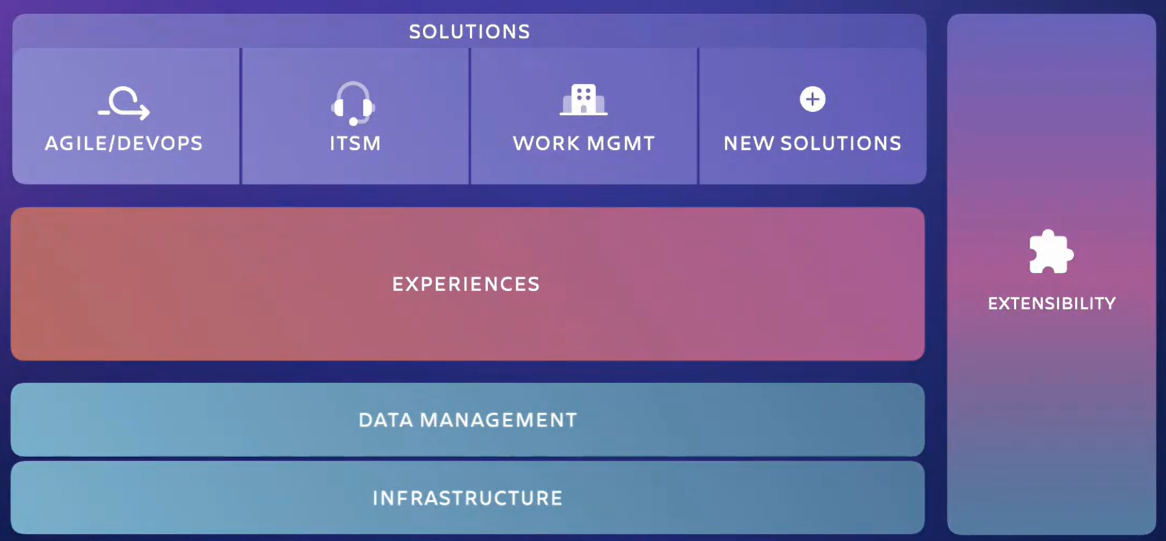
Atlassian organizes its products into 3 broad solution categories – Agile/DevOps, ITSM and Work Management. Each solution type is built upon the same 3 core layers. By sharing the same core, teams are able to operate independently of each other but can easily collaborate and align with each other.

The first of the multi-layer platform is the shared experience. Atlassian is working hard to ensure a consistent experience across all of their products, to help reduce user friction when onboarding experienced users into new products.

The data management layer helps Atlassian meet their security compliance requirements across multiple industries.

The cloud infrastructure underneath all of this powers hosted microservices that hold up the entire stock of Atlassian solutions.

Finally, an extensibility layer through the Atlassian Marketplace helps enables to customize the capabilities according to your needs.

Shared experiences

Shared experiences Atlassian dasboard

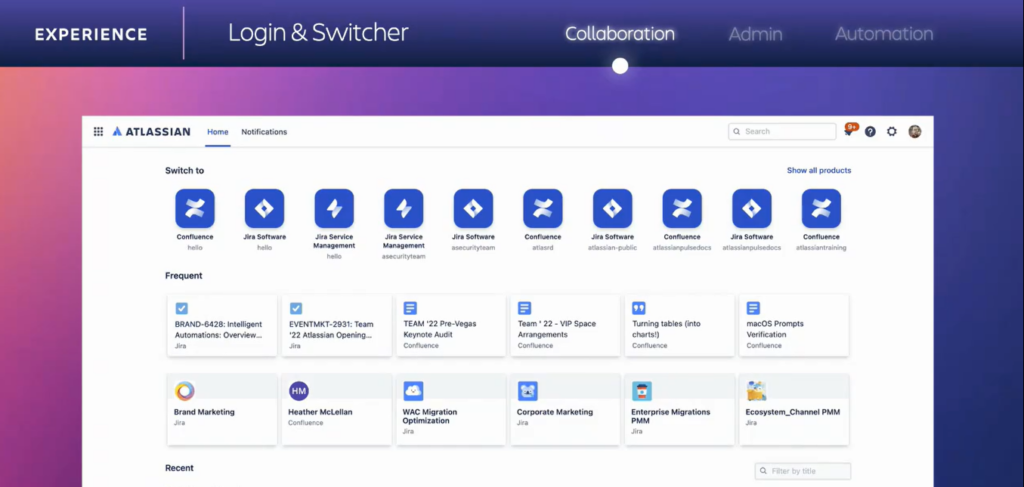
Atlassian are pushing hard towards a unified user experience across all of their applications. This should help users engage with the collaborative features across the entirety of the Atlassian product suite.
If you’re an Atlassian user, who uses one product or more, you’ll now get a unified login experience to access all of your products.

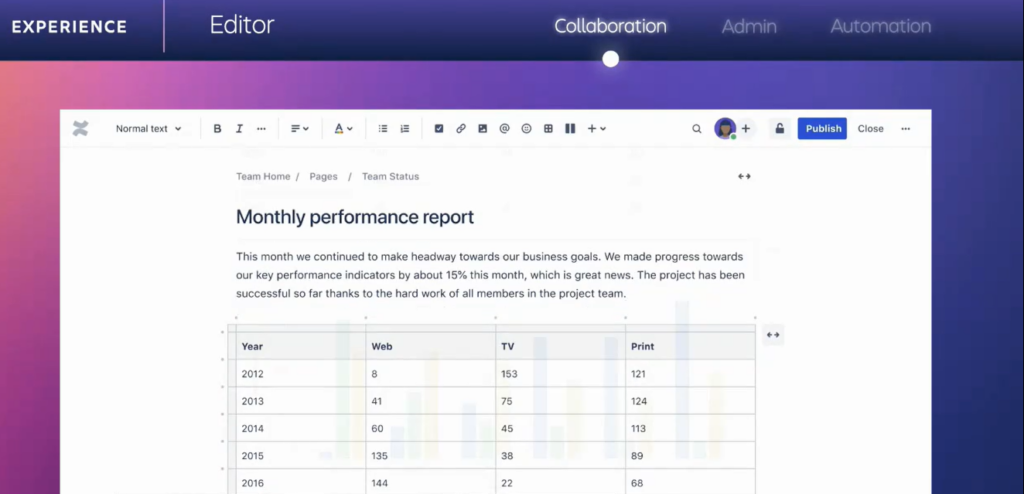
Confluence Tables

The Confluence editor now allows you to directly insert inline tables and change chart type.

confluence tables

You can now automatically create charts out of your data, and switch chart type with one single button. This is done within the Confluence editor without having to exit and switch to another product.

More Confluence updates

  • Popular drawing tools such as Miro, Mural, Draw IO, Glitchy and Lucid have now been integrated. Users can improve their Confluence page visuals with objects such as diagrams and flowcharts.
  • Atlassian will soon be launching a presenter mode, which is a streamlined view of a published page that makes for a really polished screen share (and avoids visual distractions).
  • Atlassian is building in some more playful features, such as adding emojis to page titles, add
    header images. Page readers will be able to tell you how they feel with emoji reactions.
  • Microsoft Teams: Microsoft Teams will be the first non Atlassian product to integrate with Confluence embedded pages.

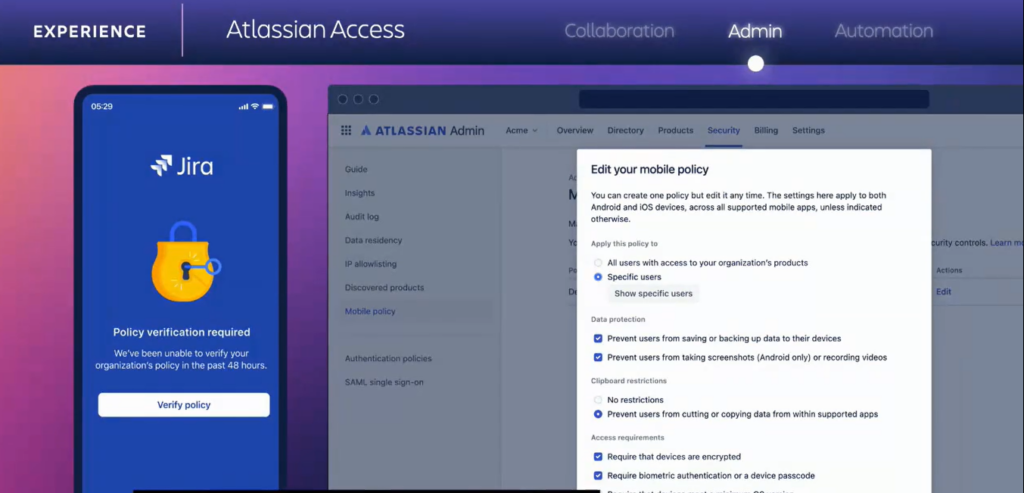
Admin security

Admin security: Atlassian access

Atlassian Access will enforce native security controls on mobile apps through the mobile app management capability in Atlassian access.

Work Management Apps

Work Management Apps

Work management is a category of products that is receiving increased attention over the last few years, as businesses of all shapes and sizes try to navigate the digital transformation. Whilst the purpose of these apps is to help teams to get their work done they are becoming more specific than ever before. This can present challenges such as data silos and operational blocks. Atlassian Atlas can help you overcome some of these hurdles.

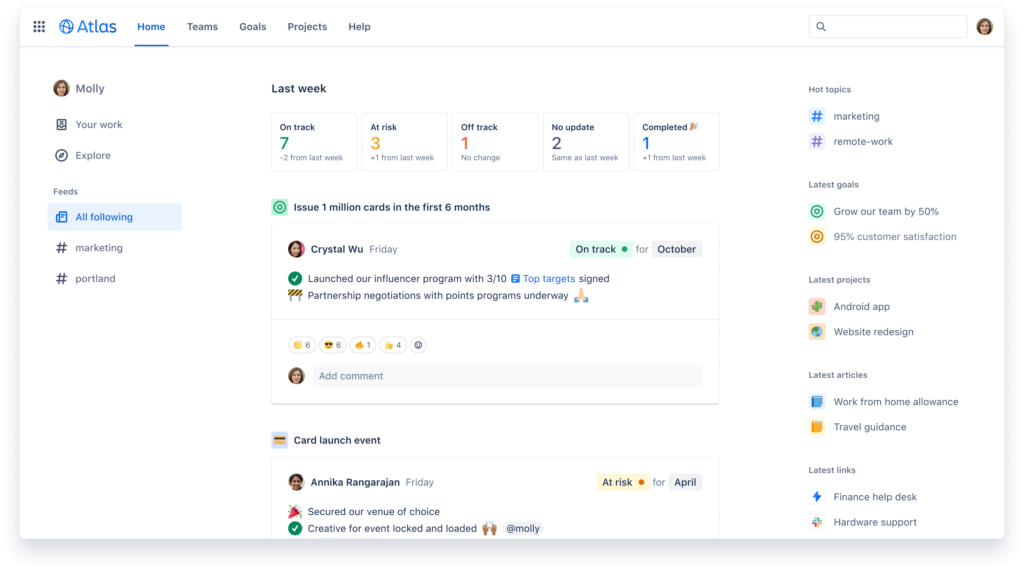
Atlassian Atlas

Atlassian Atlas is a free teamwork directory that connects the dots across teams, their apps, and work. Atlas can answer multiple operational questions like โ€œwhat, why and howโ€ and should lead to better work management relationships between all of your teams.

Atlas can also sync with apps such as Slack and Microsoft teams to get the latest updates.

Atlassian Atlass dashboard

Atlas is linked via epics, meaning you can connect Atlas Projects to Epics in Jira Software. Atlas can also display the profiles, of anybody on your teams.

Atlassian Compass

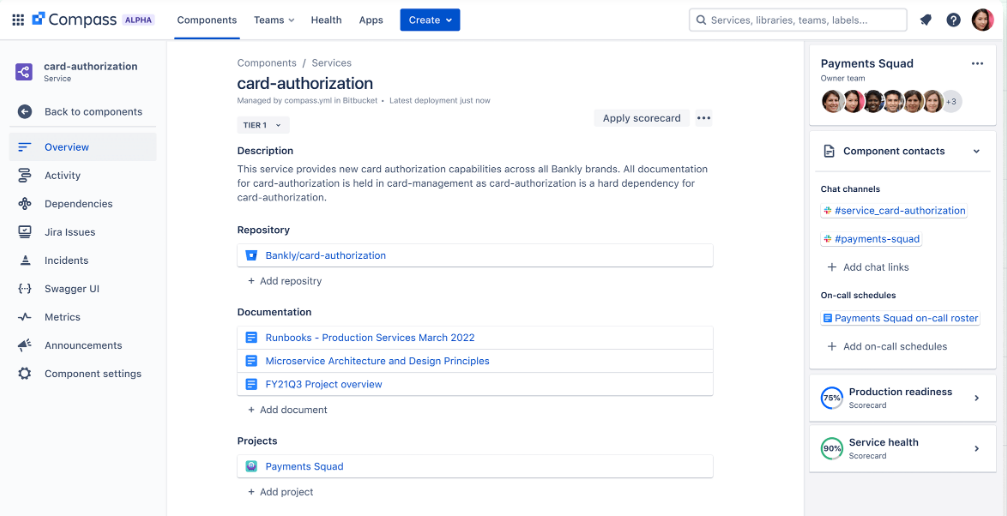
Compass is a free developer experience platform that helps integrate disconnected information, so you can better navigate distributed architecture. You’ll be able to know exactly where to go for help. You’ll be able to build and use scorecards to give autonomy to your teams to maintain security and compliance, all while getting real-time updates.

Atlassian compass dasboard

Atlassian Analytics & Atlassian Data Lake

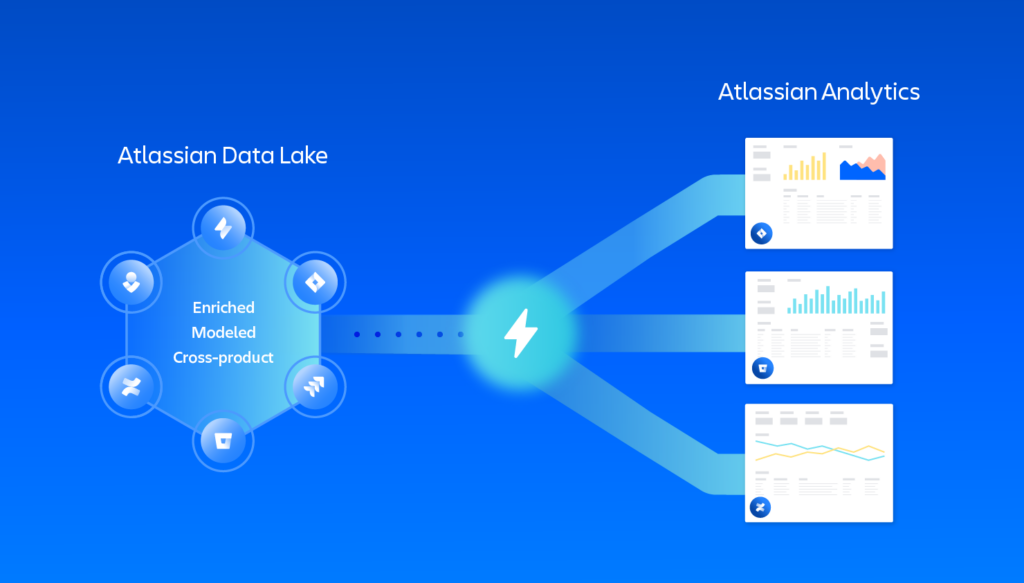
Both of these tools are intended to help teams to get the big picture of their operations. Atlassian Data Lake is cross-product and cross-instance tool (built on enterprise-grade) to get practical analysis through pre-modeled fields.
Atlassian Data Lake includes data from Jira Software and Jira Service Management.

Atlassian Data Lake + Atlassian Analytics

Atlassian Analytics is a tool to visualize your data through SQL or without code. Atlassian Analytics can connect Atlassian Data Lake. Some ways Atlassian Analytics delivers insights through Data Lake are:

  • Out-of-the-box interactive dashboards
  • SQL visualization
  • No-code visualization
  • Blend in data from other sources

Percept.AI

Percept.AI has joined the Atlassian family to brings their AI-powered virtual agent technology to Jira Service Management helping enterprises deliver outstanding employee and customer support. This tool can help technology teams to automate tier-1 support interactions, supercharging conversational experiences throughout portal, chat, email, and web channels.

Conversational ticketing in Jira Service Management

On the Atlassian Team ’22 the company reintroduced conversational ticketing with a product called โ€œAssist.โ€ Meet your team where they work to capture requests and manage tickets directly from your conversations in Slack. With this implementation, you’ll be able to:

  • Capture Jira Service Management requests directly in Slack 
  • Bi-directionally send and receive internal comments and public replies between Slack messages and Jira Service Management
  • Edit ticket fields and transition tickets from your Slack conversations

Watch Team’22 on-demand

Click here to watch the On-Demand version

Contact us

Do you have some questions or comments about Team’22? Feel free to contact the Oxalis team to get answers about Team’22.

Atlassian Cloud Migration Webinar [ON-DEMAND]

On February 24th, 2021, we held a webinar on Atlassian Cloud Migrations. Participants heard, how to successfully implement a migration strategy and avoid the common pitfalls of an Atlassian Cloud migration. Topics included:

  • [2:20] Atlassian Cloud Migration Introduction
  • [3:23] Overview of Migration Tooling
  • [5:11] Migration Planning
  • [9:16] Organizational path
  • [13:20] Lucid’s Cloud Case Study
  • [14:35] Testing your Migration Path
  • [20:02] Migration Execution
  • [23:25] Post – Migration Activities
  • [27:01] Summary
  • [30:01] Q&A Session

Did you miss the live version of our Atlassian Cloud Migration Webinar? Watch it On Demand now

Watch our Atlassian cloud migration webinar to learn more:

Should I migrate to Atlassian Cloud?

You should know that Atlassian will end the sale, installation, and support for server apps on Feb 15, 2024. By knowing this, it is important to be precocious about starting your product migration.

Atlassian and its Marketplace Partners won’t offer technical support for any issues, security updates, or bug fixes for critical issues.

Regular security updates are essential for safeguarding your business against threats and issues. By upgrading to the Atlassian cloud, you can benefit from ongoing support, regular security updates, and the latest features and functionality.

This will help you stay current and secure while ensuring that your Atlassian tools continue to meet your evolving needs

If youโ€™re using Atlassian products, you may be wondering about migrating to the Atlassian Cloud. Atlassian Cloud offers a number of benefits, including increased flexibility, ascendable, and security. However, you may also have questions about Atlassian Cloud licensing and Atlassian license cost.

When considering a migration to the Atlassian Cloud, itโ€™s important to understand the licensing model. Atlassian Cloud licensing is based on the number of users that need to access the Cloud platform. You need to figure out how many users you currently have and will need for your Cloud deployment.

Oxalis team can help make the process easier, and ensure a successful migration of your products and apps to the cloud. As an Atlassian Platinum partner our experience is valuable for all of our customers. With Oxalis, migrating to the cloud is a simple process.

There are several reasons why an Atlassian migration is a powerful idea for your teams:

  • Availability: Atlassian Cloud allows you to access your tools and data from anywhere
  • ย Flexibility: Scale up or down as needed according to your team’s size
  • Automatic updates: Don’t need to worry about updating your tools or servers, Atlassian takes care of it for you.
  • Reduced maintenance: Moving to Atlassian Cloud can free up your IT team’s time and resources.
  • Cost savings: Atlassian Cloud can often be more cost effective than maintaining your own servers.

Atlassian plans

If you’re looking an Atlassian migration to cloud you should consider the Atlassian plans:

  • Free plan: There are limitations such as a limited number of users and storage capacity. You can use this as an initial trial period before make the move.
  • Standard plan: This is a paid subscription that offers additional features and functionality beyond the free plan
  • Premium plan: It is designed for larger organizations and teams that require more personalization and unlimited storage.

Note: Standard plan and Premium plan are month subscriptions.

A solution partner such as Oxalis can guide you across every step of the process in your cloud Atlassian migration.

Cloud: Marketplace apps

Atlassian Marketplace apps are add-ons that can be installed into your Atlassian tools, such as Jira, Confluence, or Bitbucket. These apps can provide additional functionality and personalization to your Atlassian tools, allowing you to tailor them to your specific needs.

The Marketplace has available multiple apps. These apps cover a broad range of categories, including project management, reporting, automation, security, and integrations with other tools.

How can Oxalis help me with my Atlassian products?

Oxalis offers Atlassian Professional Services. We can run your migration from server or data center to cloud. For example, in just 30 days, we migrated Lucid Software.

Weโ€™re a team of experts dedicated to helping organizations get the most out of Atlassian products. These services help businesses improve their workflows, optimize their Atlassian tools, and enhance collaboration and productivity.

They include cloud transformation, consulting, training, Atlassian license management, and Atlassian managed services.

The main benefit of Oxalisโ€™ Atlassian Professional Services is the ability to customize your Atlassian tools to meet your specific needs. Our Atlassian consultants can work with you to understand your workflows and processes. Atlassian consultants can help with tool migrations, data migrations, and integrations with other systems. Additionally, our team offers Atlassian migration support at every stage of the process.

Our Atlassian Professional Services also provides ongoing support for your Atlassian products. This includes access to Atlassian support engineers, as well as proactive services like health checks, performance tuning, and system monitoring. With Atlassian support, you can ensure your Atlassian tools are running smoothly and efficiently. Also, Weโ€™re experts in Enterprise Work Management, ITSM, DevSecOps, and Agile at Scale.

Atlassian training covers a wide range of topics, including Jira Software, Confluence, Bitbucket, and more. With Oxalis training, your team can improve their skills and productivity.

Do you need some help with Atlassian cloud costs for your team? Contact us

Recommended blog posts

8 Myths about Moving to the Cloud Debunked

8 Myths about moving to the cloud debunked | Whitepaper

In this whitepaper, other topics that will be touched are:

  • Users.
  • Data management.
  • Customization.
  • And so on.

As more and more businesses move their operations to the cloud, Atlassian has become a popular choice for organizations looking for a robust suite of tools for project management, collaboration, and communication. However, there are still many myths and misconceptions about migrating to the Atlassian cloud that can prevent organizations from making the move.

Migrating to the Atlassian cloud offers many benefits, including improved security, access to the latest features, and scalability. While there are some myths and misconceptions about migrating to the cloud, the truth is that it is a simple and secure process that can help organizations save time and money. If you’re considering migrating to the Atlassian cloud, don’t let these myths hold you back. Instead, take advantage of the many benefits that the cloud has to offer.

Stop the worries now. Be part of the technology change and have chance to improve your business processes and communication with your team. Take the bull by the horns and star shooting down the principal myths about moving to the cloud with this quick guide we have for you. In this Atlassian Whitepaper, you will discover the principals myths companies has, about moving to cloud. Jump into the next level with Atlassian Cloud and improve your profits, productivity, and performance.  Get this whitepaper and start your process with Atlassian.

If youโ€™re considering a move to the cloud, chances are one of your biggest concerns is security. And if thatโ€™s the case, youโ€™re not alone. In fact, 40% of IT managers surveyed said security and compliance are some of the greatest challenges of an on-prem-to-cloud migration. A staggering 94% of businesses that have already made the move to the cloud say security got better after the moveโ€”not worse.

No matter your size or user tier, every customer gets access to Atlassianโ€™s enterprise-grade security. Atlassian has spent quite literally millions to make sure itโ€™s airtight, and theyโ€™ve stated itโ€™ll continue to be a priority. This means teams that have been dividing focus between security and other issues in house are now free to devote their time to supporting your teams and improving internal systems.

Migrating to the Atlassian cloud is important for several reasons. Firstly, it offers improved security and compliance for organizations. By hosting their data on the cloud, organizations can take advantage of the security infrastructure provided by cloud providers like Amazon Web Services (AWS), which can be more robust than what they can implement on their own. Additionally, Atlassian conducts regular security audits and has numerous compliance certifications, which can help organizations meet their own compliance requirements.

Secondly, the Atlassian cloud offers access to the latest features and enhancements. Atlassian’s cloud products are updated more frequently than their on-premises counterparts, which means that cloud users have access to new features and improvements sooner. This can help organizations stay competitive and adapt to changing business needs.

Thirdly, migrating to the Atlassian cloud can help organizations save time and money. Maintaining and upgrading on-premises installations can be a time-consuming and expensive process, and migrating to the cloud can reduce this burden. Additionally, the cloud versions of Atlassian’s products are more scalable and can handle larger volumes of data and users, which can help organizations grow without needing to invest in additional infrastructure.

Finally, migrating to the Atlassian cloud can help organizations streamline their operations and improve collaboration. Atlassian’s cloud products are designed to help teams work together more effectively and efficiently, with features like real-time collaboration, task tracking, and document sharing. By migrating to the cloud, organizations can take advantage of these features and improve their overall productivity and collaboration.

Overall, migrating to the Atlassian cloud is important for organizations that want to improve their security, access the latest features, save time and money, and streamline their operations. While there may be some myths and misconceptions about migrating to the cloud, the benefits of doing so can be significant for organizations of all sizes and industries.

If you need help with migration assistant or using the cloud, feel free to contact us.